SSIS For Each Loop over files with Date in Name

A common request I have received over the years is to move or copy files from one directory to another based on the file name.  This can be accomplished in SSIS without using any script task. You can do this with a for each loop, an empty sequence container, a file system task, and a few expressions on some variables.
Here is a look at the entire package:
image
Now here are the variables, the variables with the red circle have expressions on them. You can build this package with fewer variables but that would cause maintenance headaches in the future. This package can be maintained using configuration files or tables and control all variables without an expression. The variables with expressions are based on the other variables so the configuration changes would up these indirectly.
image
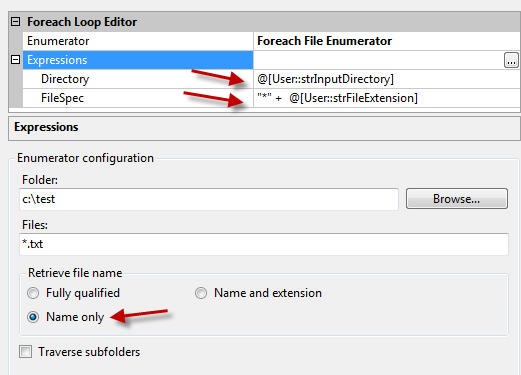
The first thing you need to do is create a for each loop and map in the variables to the directory and file spec properties. In the image below you can see the directory is using the input directory variable and the file spec is using the file extension and has an asterisk in front of the expression for the wild card. Notice also that you only need the file name only.
image
The file name is mapped to the current file variable.
image
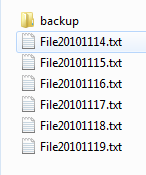
Here are the files that you want to loop over and check the date. If the date is older than one day then you want the file to be moved to the backup folder.
image
Now you need a sequence container inside the for each loop. There will be no task in this sequence container because the container is used as an anchor point for the expression between the sequence container and the file system task.
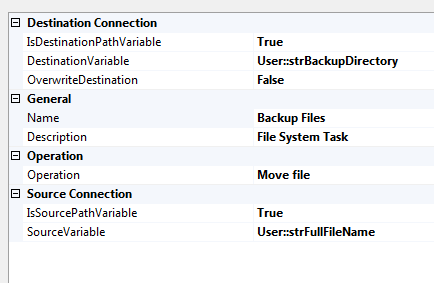
Below you can see the file system task is set up to use the variables and is set to move the files. This could also be changed to copy or delete the file based on your needs.
image
Now for the expressions, the variables with the red circles next to them have expressions on them.
The dtFileDate variable is used to get the date from the current file name in the loop. This takes a combination of right and substring functions to parse out the date as the following format yyyy-mm-dd. Then this is converted from a string to date. This is now used in the precedence constraint expression between the sequence container and the file system task to see if the date meets the move criteria.
dtFileDate=
(DT_DATE) (Substring(Right(@[User::strCurrentFile],8),1,4)+ “-” +
Substring( Right(@[User::strCurrentFile],4),1,2)+”-“+
Right(@[User::strCurrentFile],2))

The dtCutoffDate Variable uses the strDaysBack variable to subtract the number of days from today’s date. This allows you to update the strDaysBack variable using configurations. This is why it is a good idea to never hard code in the values in your expressions. Always use a separate variable to reduce maintenance.
dtCutOffDate =
DATEADD( “d”, @[User::strDaysBack] , GETDATE()  )

The strFullFileName Variable combines three variables to get the complete path to the current file. This is needed because we only get the name of the file in the for each loop. Getting just the name in the for each loop makes it easier to get the date in the file name.
strFullFileName =
@[User::strInputDirectory]+ @[User::strCurrentFile]+ @[User::strFileExtension]
The last thing you need is the expression between the sequence container and the file system task. This compares the dates and if the expression is true then the file system task is performed.

image

Hope this help you when building complex packages looping through files. Keep in mind if your files have a different date format you will need to adjust your expressions to get the date. Let me know if you have any questions.
Posted in SSIS, Syndication | Tagged | 22 Comments

Using Checksum in SSIS for Delta Loads

The checksum function in SQL is a great way to compare two rows to see if the data matches. The checksum command returns a number that represents the value of the data in the row. When you compare the checksum value of two rows, and the values match, this confirms the data on the rows match. If a change has occurred on one of the rows then the checksum value will change.

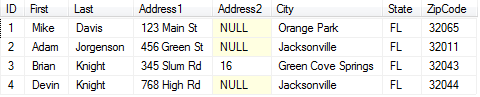
Here is a table that has some data that I am going to load into a second database. The ID column is the primary key and therefore unique.

image

  Here is the table that needs to be updated.

image

  Notice that Mike Davis has moved to a different address in the same city. So this is the only row that needs to be updated. If I use an SSIS package to load this data I could truncate and reload the entire table. If the table only has a few rows this would be fine. But if the table contains millions of rows this would be a very long process. We can use a lookup and compare each column to see if there are any changes. This is fine if there are only a few columns. If the table has hundreds of columns then it would take a long time to map every column in the lookup transform and would perform badly due to all of the comparisons. With the checksum value we can compare just one column in a conditional split transform.

Here is the dataflow in an SSIS package that is using the checksum value to compare the input table to the table to update. Below we will look at each transform in detail.

image

  The source is an OLEDB source and is using the following SQL command.

  SELECT Checksum(ID,First,Last,Address1,Address2,City,State,ZipCode) as ‘Checksum’
,ID ,First ,Last ,Address1 ,Address2 ,City ,State,ZipCode
FROM InputData

  The results from this query are shown below.

image

  Notice the checksum value in the first column. The checksum function is wrapped around every column in the table. If you only want to compare a subset of the columns then only add this subset in the checksum function. The checksum Syntax is Checksum(Col1, Col2, Col3…) as Alias.

  The next transform is a lookup and is doing a compare of the ID columns and getting the checksum from the table that needs to be updated.

  I set the no matching rows to redirect to the no match output.

image

  This lookup transform is using a query with the checksum value in the SQL query also.

image

  The results of this query are shown below. Notice all the checksums match the input table’s checksums from above, except for the row that has changed, which is the row with ID 1.

image

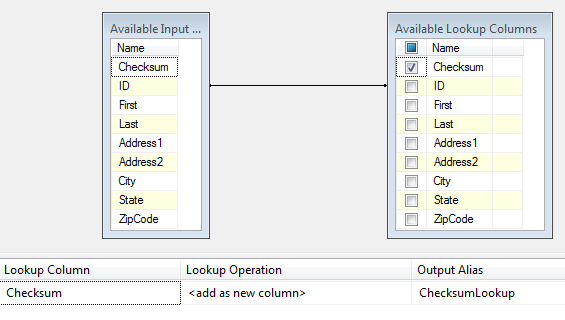
  In the Columns node of the lookup transform I mapped the ID columns together and I placed a check next to the Checksum on the lookup table. This way we can compare the Checksums in the next transform, the conditional split.

image

  If the lookup does not find a match then the record is new and needs to be added to the table regardless of the checksum value. The no match output goes to an OLEDB destination.

The matching rows go to the conditional Split which compares the Checksum Values. The conditional split has two outputs. The “No Changes” output is the matching checksums. The “Updates Needed” output is the non matching checksums. If the checksums do not match this indicates that something on the incoming row is different from the existing table and needs to be updated. We know the table has a matching ID because of the preceding lookup finding the matching ID’s.

image

  The “Update Needed” rows go to an OLEDB Command transform. This transform is running an update statement for every column in the row with the matching ID.

Here is the update command.

UPDATE [Testing].[dbo].[TableToUpdate]
SET
[First] = ?
,[Last] = ?
,[Address1] = ?
,[Address2] = ?
,[City] = ?
,[State] = ?
,[ZipCode] = ?
WHERE [ID] =?

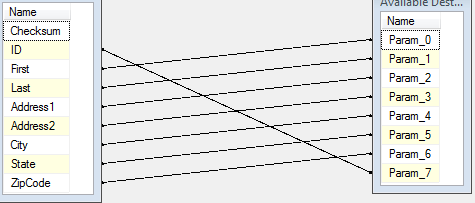
Here is the parameter mapping in the OLEDB Command transform.

image

  Each row is mapped to the proper column to update. The ID column is mapped to the where clause. Go back to the picture of the entire data flow and see if it makes sense now.

This is not the only way to accomplish this. I could have written the updated rows to a staging table and done a set based update to the table to improve performance.

On a side note all of this work could be done with one simple add-on. Task Factory has an Upsert destination and does all of this work and the batch update so it is very fast. If you used the task factory Upsert destination your data flow would look like this.

image

  Let me know if you have any questions.

Posted in SSIS, Syndication | Tagged | 7 Comments