Partial Cache Lookup with a Date Range

When setting up a lookup in SSIS it is usually just a basic comparison between two key fields like an ID field. What if you want to compare and id and also find the specific date range. Let’s say the id is in the lookup reference table multiple times and you need to find the one that is has the date that surrounds a source date.
First let’s take a look at the tables.
I have a Lookup Source table that will be the source in the data flow and a Lookup Reference table that will be used in the Lookup Transform. Notice there are three IDs in the source and each id shows up twice in the reference table. So if I want to control the ID the lookup returns I will need more criteria. I want the Source Date to be between the start date and end date on the reference table. This is easy to do in the Lookup transform.

image 

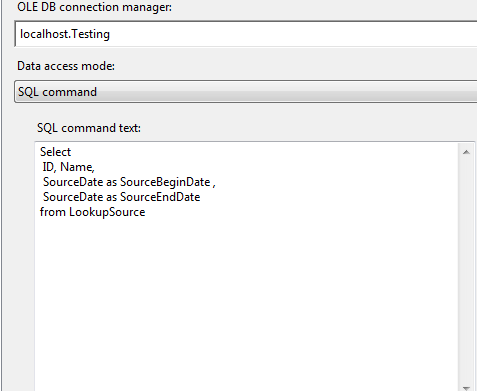
The source in the data flow is just a simple OLEDB source. I have duplicated the source date and gave both and alias. One called Source Begin Date and the other called Source End Date. This will give me the two dates I need in the lookup transform.
 
image
You must set the cache to partial cache to allow the changes to the lookup reference query.
 
image

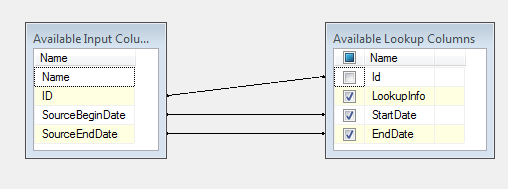
In the column node I map over the ID. I also map the two source dates to the reference dates. If we left the lookup in this state we would get back no rows.
 
image

Go into the advanced node in the lookup transform (Not the advanced editor). Check the option to modify the SQL statement and change the comparison the start date and end date from equals to greater than or equal to, and less than or equal to as seen in the image. This will find the row that has a date range that includes the date from the source.

 
image

I placed a data viewer after the lookup in the data flow and the image shows the results. Notice I got all the rows with the term bad in the lookup info.

image 

Now I will change all the dates in the source table. This will make the lookup find different rows.

image 

Notice now I get the rows with good in the Lookup Info.

 image

Keep in mind the partial cache is much slower than the full cache mode generally.

Posted in SSIS, Syndication | Tagged , | 1 Comment

Replacing a SQL Cursor with SSIS

On a forum post recently the questions was asked how to replace a cursor with an SSIS package. This can be done several ways depending on the situation. In this situation there is a number on each row that determines the number of times a row needs to be written to the destination.
The source table looks like the following image.
 
image

The Number of Nights column tells us how many times this row needs to be inserted into the destination table. So the Destination should look like the following image after the load is complete. Notice the number of nights matches the number of times the row appears on the destination table.
 
image

This can be performed by using a cursor to loop through each row, but this is very slow. If you needed to perform this for millions of rows it would be a very long process. The power of SSIS is in the batch loads it performs in data flows.  You can perform this using a small SSIS package. Here is an image of the package Control Flow you can create to perform this kind of cursor work.
 
image

This SSIS package will have two variables, intCounter and IntNumber of Nights. The counter variable will increment during the loop. The number of nights variable will hold the maximum number of nights from the source table.
 
image

The first task in the package is an Execute SQL Task. It retrieves the maximum number of nights and saves it in the number of nights variable. This will control the number of times the loop runs.
The query in the Execute SQL Task is:
Select max(NumberofNights) as Nights
From CursorSource
The result set is single row and intNumberofNights is mapped under result set.
 image

 
image

The For Loop Container will loop from 1 to the max number of nights. The image below shows how this is set up. This is assuming the lowest number of nights will be 1.
 
image

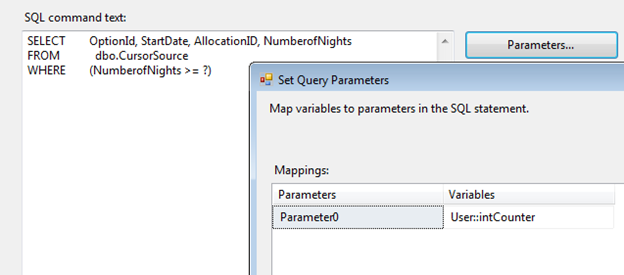
The only thing left is the Data Flow. The source will be an OLEDB source with the following SQL query.
SELECT        OptionId, StartDate, AllocationID, NumberofNights
FROM            dbo.CursorSource
WHERE        (NumberofNights >= ?)
The question mark is a parameter and is mapped to the intCounter variable. This will only select rows that have the number of nights greater than or equal to the counter.
 
image

The destination is an OLEDB Destination. No special setup needed for this task, just map the source columns to the proper destination columns.
 
image

This package will give you the results in the first two table images. The parameter in the Data Flow source prevents it from loading a row too many times. 
Let me know if you have any questions, or if you have a cursor problem you need solved let me know.

Posted in SSIS, Syndication | Tagged , | 4 Comments

BI Xpress Infomercial

Check out this cool Infomercial Pragmatic Works made about BI xPress.

http://pragmaticworks.com/landing/bixpressinfomercial.aspx

Posted in Pragmatic Works | Leave a comment

White Paper – Troubleshooting SSIS

.
.
My SSIS White Paper has been published! Download the White Paper and the Sample Files here.

Banner Image

“SSIS is a fantastic Microsoft tool for performing Extract Transform and Loading (ETL) procedures. A challenge in SSIS is identifying a problem once you deploy your packages. In this webinar you will learn how to both identify and solve your SSIS issues.”

REGISTER NOW!

SSIS Book

What you’ll learn:

· How to set up auditing on SSIS packages
· How to set up logging on SSIS packages
· How to use both native tasks built into Integration Services and BI xPress

REGISTER NOW!

Training Image

http://pragmaticworks.com/downloads/TroubleshootingSSISWhitepaper/

Posted in SSIS | Tagged , , | Leave a comment

Handling Flat File Headers and Errors in SSIS

Using SSIS to load a flat file into a database is a common use of the tool. This works great in SSIS and is very fast due to the dataflow doing batch updates. This is easy to set up when the flat file has no headers and footers. I am not referring to the column headers, those can be skipped. I am referring to the headers that are not a part of the data. Below is an example of data from a comma delimited flat file. There are several columns of data in the flat file separated by commas. The headers and footers that appear around the data make it difficult to get to the data.

 
image

One of the options you have in this situation is to use the error output from the source in the data flow. The problem with this approach is data could still be written from the header if the header does not cause an error.
Here is a data flow example of the flat file loading into the table with the error rows being sent to another file that can be checked later manually for data.
 
image
After running the dataflow with the above file we can see that the headers were moved to the bad file, but the first data row was moved also. Here is the bad rows file:
 
image
The rest of the rows were written to the table.
 
image

If the header is very small then you may get some of the header in the database. Here is an example file with a small header.
 
image
Loading this using the above data flow causes no rows to be written to the bad rows file and places the header into the table as seen below. This occurred because the header and the first row in the data did not exceed the column width on the table and therefore was treated as the data.
 
image
You can see that this bad row option does not always work for loading data. You may end up with missing rows or junk data. We need away to remove the header rows. Fortunately this can be done with a script task in SSIS.
The first thing we need to do is create some package variables to be used by our script task. This way if the file format changes we can update the variables and the script task will still run successfully. This script is made to work with delimited files only. If the file is fixed width or ragged right, this approach will not work.

intDelimCount = number of delimiters that should be on each line that contains data
strAppend = Appended to the new file name created from the script task
strDelimiter = delimiter used in the flat file
strDestFolder = destination folder for the new files created by the scrip task
strFileExt = extension of the flat file
strFileName = name of the flat file
strSourceFolder = folder where the flat file exist
 
image
Now for the script task, this script task will open the file and parse through the rows looking for any rows that have the right amount of delimiters. When it finds a row that has the right amount of delimiters it writes this row to a new file in the destination folder. It adds the append variable to the file name also. If the row does not contain the correct number of variables it is skipped over. Once the script task is complete you will have the original flat file unchanged, and you will have a new file with only the data rows. Below is the code in VB, you can convert it to C# with websites like this one: http://www.developerfusion.com/tools/convert/csharp-to-vb/.

    Public Sub Main()

        'save the package variables as script variables
        Dim strDestFolder As String = Dts.Variables("strDestFolder").Value
        Dim strAppend As String = Dts.Variables("strAppend").Value
        Dim delim As String = Dts.Variables("strDelimiter").Value
        Dim intDelimCount As Integer = Dts.Variables("intDelimCount").Value
        Dim strFileName As String = Dts.Variables("strFileName").Value
        Dim strSourceFolder As String = Dts.Variables("strSourceFolder").Value
        Dim strFileExt As String = Dts.Variables("strFileExt").Value

        'combine the variables to get the file names
        Dim inputFileName As String = strSourceFolder + strFileName + strFileExt
        Dim outputFileName As String = strDestFolder + strFileName + strAppend + strFileExt

        'intitilize the line count
        Dim intLineCount As Integer = 0

        ' try to write the proper lines to a file
        Try

            Dim inputFile As New StreamReader(inputFileName) ' create a streamreader to read the flatfile
            FileOpen(1, outputFileName, OpenMode.Output, OpenAccess.Write) 'create and open the new file to write the data into

            'create variables for the reading and writing loop
            Dim strFullLine As String = Nothing
            Dim strLine As String = Nothing
            Dim intDelimPos As Integer = 0
            Dim intCount As Integer = 0

            While Not (inputFile.EndOfStream) ' read until we reach the end of the flat file

                strFullLine = inputFile.ReadLine ' read one line and save so we can write it to the new file later

                strLine = strFullLine ' save the line in another variable that will be broken up to count delimiters

                intDelimPos = strFullLine.IndexOf(delim) ' get first delim position

                intCount = 0 'reset the count of delimeters

                While intDelimPos <> -1 'loop until there are no delimters found

                    strLine = strLine.Substring(intDelimPos + 1) 'drop everything before the current delimeter

                    intDelimPos = strLine.IndexOf(delim) 'get position of the next delimiter

                    intCount += 1 ' increment count of the number of delimiters found

                End While

                If intCount = intDelimCount Then 'if the right amount of delimeters were counted then write the line to the fixed file

                    PrintLine(1, strFullLine) ' write the data line to the new file

                    intLineCount += 1 'increment the line count showing the number of lines written

                End If

            End While

            If intLineCount > 0 Then ' if any rows were written fire information so we can see this in the progress tab

                Dts.Events.FireInformation(0, "subComponent", CStr(intLineCount) + " Lines Written to:" + outputFileName, String.Empty, 0, False)

            End If

            'close the two files
            FileClose(1)
            inputFile.Close()

        Catch exDTS As DtsException 'catch any errors and fire the error event on the package

            Dts.Events.FireError(CInt(exDTS.ErrorCode), Dts.Variables("System::TaskName").Value.ToString, exDTS.Message.ToString, String.Empty, 0)

        Catch ex As Exception 'catch any script errors and fire the error event on the package

            Dts.Events.FireError(0, Dts.Variables("System::TaskName").Value.ToString, ex.Message.ToString, String.Empty, 0)

        End Try

        Dts.TaskResult = ScriptResults.Success

    End Sub

.csharpcode, .csharpcode pre
{
font-size: small;
color: black;
font-family: consolas, “Courier New”, courier, monospace;
background-color: #ffffff;
/*white-space: pre;*/
}
.csharpcode pre { margin: 0em; }
.csharpcode .rem { color: #008000; }
.csharpcode .kwrd { color: #0000ff; }
.csharpcode .str { color: #006080; }
.csharpcode .op { color: #0000c0; }
.csharpcode .preproc { color: #cc6633; }
.csharpcode .asp { background-color: #ffff00; }
.csharpcode .html { color: #800000; }
.csharpcode .attr { color: #ff0000; }
.csharpcode .alt
{
background-color: #f4f4f4;
width: 100%;
margin: 0em;
}
.csharpcode .lnum { color: #606060; }

After running this script on the following file:
 
image
Here is the new file created by the scrip task:
 
image
The comments in the code should explain what is taking place line by line. This script task can be placed in a For Each Loop and run on a series of files. As long as they all have the same number and type of delimiters.
This is not a perfect system. If there is a header row that contains the right amount of delimiters then it will be written to the new file. This might cause an error during the data flow, or the header may get written to the table. I think a header having the exact same number of delimiters as the data would be rare. If the flat file has column headers, they will be copied to the new file. You will need to check the header rows option in the connection manager for the flat file. Also if the delimiter appears in the data it will not have the correct delimiter count.
If you have any questions about this article, or if you have another flat file situation that is strange, let me know.

Download the Zip file here:

http://www.bidn.com/Assets/Uploaded-CMS-Files/16f06a8f-8828-4331-abb0-4903562e4e06ReadFileHeaders.zip

Posted in SSIS, Syndication | Leave a comment

SQL Saturday Orlando – Pre Con

I’m very proud to announce that Pragmatic Works will be presenting a Business Intelligence Workshop pre-con for SQLSaturday #85 in Orlando on Friday September 23rd! In this session you’ll have not one, not two, not three but FOUR Pragmatic Works consultants walking you through how to develop a full business intelligence solution from the ground up! Your instructors for this awesome pre-con are:

Jorge Segarra (Twitter | Blog)

I’m a BI Consultant for Pragmatic Works and a SQL Server MVP. In addition to being a member of the Jacksonville SQL Server User Group (JSSUG) I’m also a PASS Regional Mentor for the U.S. Greater Southeast region. I have also co-authored the book from Apress “SQL 2008 Pro Policy-Based Management“. Redgate Exceptional DBA of the Year 2010 Finalist.

Mike Davis (Twitter | Blog)

Mike Davis, MCTS, MCITP, is a Senior BI consultant at Pragmatic Works. He is an author of a few Business intelligence books. Mike is an experienced speaker and has presented at many events such as several SQL Server User Groups, Code Camps, SQL Server Launches, and SQL Saturday events. Mike is an active member at his local user group (JSSUG) in Jacksonville, FL.

Brad Schacht (Twitter | Blog)

Bradley is a consultant at Pragmatic Works in Jacksonville, FL. He was an author on the book SharePoint 2010 Business Intelligence 24-Hour Trainer. Bradley has experience on many part of the Microsoft BI platform. He has spoken at events like SQL Saturday, Code Camp, SQL Lunch and SQL Server User Groups. He is a contributor on sites such as BIDN.com and SQL Server Central as well as an active member of the Jacksonville SQL Server User Group (JSSUG).

Kyle Walker (Blog)

Kyle is a Business Intelligence consultant for Pragmatic Works. His current and past work experience includes Integration Services, data warehousing concepts, Reporting Services, and Crystal Reports. He is active in the local and online community as a speaker for SQL Lunch, Jacksonville SQL Server Users Group, and past SQLSaturday events, as well as a blogger on BIDN.com.

Abstract:

In this full-day workshop, you’ll learn from the author team of Jorge Segarra, Mike Davis, Brad Schacht, and Kyle Walker how to build a data warehouse for your company and support it with the Microsoft business intelligence platform. We’ll start with how to design and data model a data warehouse including the system preparation. Then, we’ll jump into loading a data warehouse with SSIS. After SSIS, you’re ready to roll the data up and provide the slice and dice reporting with SSAS. The team will walk through cube development and data enrichment with things like key performance indicators, which are essential for your future dashboards. Lastly, we will cover how to report against the data warehouse with SSRS including a primer in how to write MDX queries against the SSAS cube.

Take Home Skills:

  1. Practical knowledge of building a Dimensional Model
  2. Designing a simple ETL process using SSIS
  3. Designing a Cube
  4. Designing simple SSRS Reports
  5. Building an integrated process that fully leverages the entire MS BI stack to load a Data Warehouse

See you in Orlando!

Posted in SQL Saturday, Training | Tagged , , , , | 2 Comments

Using the SSIS Merge Join

The Merge Join Transform in SSIS is a great way to load a Data warehouse quickly and an easy way to join two data sources together. There are a few requirements to join these two data sources. The data sources must be sorted and there must be a key that you can join them with. This can all be done in the data flow of the SSIS package.
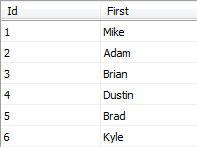
Here are some examples of a Merge Join with some different situations so you can see the outputs. The two images below show two tables. The first table contains the first names of people and the second table contains there last names. Each table contains an ID column that will be used in the join.
Table one:
1image
Table two:
2image
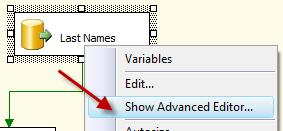
These are OLEDB sources. The queries in the sources are calling the data and sorting it with an order by clause. The source does not know the data is sorted so you have to manually tell the source it is sorted. You do this by right clicking on the source and selecting Show Advanced Editor.
3image
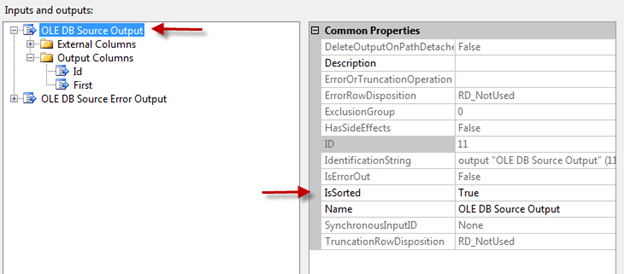
Then click on the Input Output Properties Tab. Click on the OLE DB Source Output and Set the IsSorted Property to true.
4image
Then click on the column that is the used to sort the data, in this case the ID column, then set the SortKeyPosition to 1. If you are sorting by more than one column, place a 2 on the next and so on.
5image

Then you connect both sources to the Merge Join. When it asks which input you set the First name table as the left input. You can always swap the inputs later by clicking the swap input button in the Merge Join Transform.
6image

In the Merge Join, Map the Id together and select the columns you want to pass through to the output. In this example the Join type is set to Left Outer Join. The Results will look like the below image.
7image
Notice the Null in ID 5 under last name. There was no match for ID 5, but since it was set to Left Outer Join we still get to keep the ID 5. If you set the Merge Join to Inner Join the ID 5 row would be dropped.
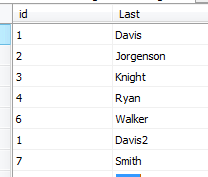
One of the other scenarios you will encounter is when the right side of the join has more than one match for some of the ID columns. For example, let’s add another row to the Last name column.
8image

This new table has an extra row with the ID 1 and the last name Davis 2. If you run this through the Merge Join with the Join set to Left Outer Join the results will match the image below.
9image

If you change the Join to Inner Join the Results will be in the below image. Notice the ID 1 is still on the output twice and ID 5 is still in the output.
10image

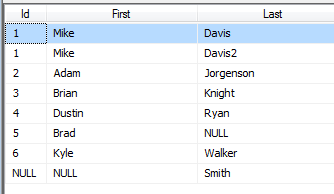
Now let’s add another row to the Last name table.
11image

When you run this table through the Merge Join with the Join set to Full Outer Join the results will match the figure below.
12image
Here you can see the Null Id. That is because we passed the ID through from the First name table. The Last name table ID was not passed through. If you want to ensure you get an Id then pass through each Id and use a derived column to check for nulls.
I hope this clarifies how to use the Merge Join Transform. This is a very powerful transform and can make joining data very fast.

Posted in SSIS, Syndication | Tagged , , | Leave a comment

Pragmatic Works Foundation Class Oct 2011

I am super excited to announce that there is a strong demand for the Foundation Training to be held more frequently.  Our last one was held in August and several people were hired for Jr. DBA and Report Writing opportunities.  We also have more companies interested in looking at the candidates that go through the Foundation as well. 

It has gained so much attention that it was even recently featured in the newspaper.  We try to offer this opportunity to individuals that have served our country, who have been displaced due to the economy or who can’t afford to go to school and get this training on their own.

To find out more about the Foundation or to be considered for a seat in the next class, visit our site http://pragmaticworks.com/foundation/

Posted in Foundation, Training | Tagged , , | Leave a comment

Variables and Expressions with Connections in SSIS

Variables and expressions help make any SSIS package dynamic and flexible. It is always a best practice to use variables in a package, especially when the information is used more than once in the package. In any package you will most likely have Connections, Tasks, Containers, Data Flows and Event Handlers. Variables can be used in any of these items and can be passed between them.

Let’s look at some examples of when variables should be used. Let say we have a package that is supposed to load a lot of flat files into a table. We have received these flat files from vendors or sales people in the field. The files all have the same file layout. This is necessary to load them all into the same table with a “For Each Loop”. 

On the package we are going to need a connection in the connection manager to the one of the flat files. But this file name is going to need to change for each iteration of the loop. We will use expressions to do this.

1.    Right click in the connection manager and select New Flat File Connection.
2.    Name it a name that will be meaningful for all the files we will loop through.
3.    Select a file name of one of the file files.(Note: Change the file type to all files if needed)
4.    Make adjustments to the text qualifier and any other properties needed.
5.    Click on the preview node on the left to ensure the data is in the correct format.
6.    Click ok

image

After the connection is created we will now create a data flow to load the data into a database. We will do this in a data flow and place this data flow into a For Each Loop.

1.    Drag a data flow task into the control flow.
2.    Double click on the data flow to open it.
3.    Drag in a Flat File Source into the data flow.
4.    Set the connection in the Flat File Source to the Flat File connection.
5.    Drag in an OLEDB destination and double click on it.
6.    Click on the New button next to OLEDB Connection Manager
7.    Create a connection to the database with the table to load the data into.
8.    Select the table to load in the drop down menu below, or click new and create the table.
9.    Click on mappings and ensure the rows are mapped correctly.
10.    Click Ok and return to the Control Flow

image

Now we are going to drag in a For Each Loop and connect create a string variable called strFileName.  This will hold the file name that is found from the For Each Loop.

1.    Open the variables window (View > Other Windows > Variables).
2.    Create a String Variable named strFileName, leave the value empty.
3.    Close the Variable window.
4.    Drag in a For Each Loop to the control flow.
5.    Drag the Data Flow into the For Each Loop.
6.    Double click on the For Each Loop.
7.    Click on the connection node on the left.
8.    Set the enumerator to For Each File Enumerator.
9.    Set the Folder location to the location where the flat files exist.
10.    Set the File properties to the file type(Example: *.DAT, *.CSV).
11.    Leave the retrieve file name to Fully Qualified name.
12.    Click on the variable mappings node.
13.    Select the strFileName variable and leave the index at 0.
14.    Click ok
Now we have the For Each Loop complete and the data flow finished, but there is still one very important thing left. We need to set the connection string property of the flat file connection in the connection manager to the strFileName variable. The For Each Loop sets the value of this variable each time it looks at a file. The data flow source is using this connection so a different file will be loaded for each iteration of the loop.
 image

1.    Single click on the flat file connection in the connection manager.
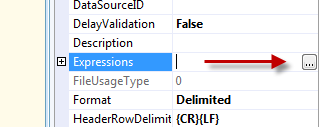
2.    Click on the Expressions property in the properties window.
3.    Click on the ellipse next to Expressions.
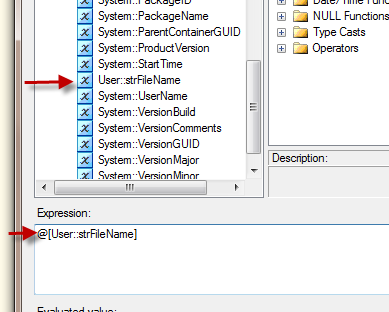
4.    In the Property expressions editor select the connection string property.
5.    Click the first ellipse in the expression column.
6.    Drag the strFileName variable into the expression window
7.    Click ok in both windows
     image

Your package is complete. Now you can run this package and it will load all of the files in the folder you selected into the selected table. There are still several places we can use variables in this package, the server name, initial catalog (database), Directory of flat files, and file type. Setting these to variables will allows us to change the package and use these in other For Each Loops we create in the package. This also allows us to make changes to these properties from outside the package using configuration files or tables.

Posted in SSIS, Syndication | Tagged , , | Leave a comment

Convert EBCDIC to ASCII in SSIS

    Converting EBCDIC to ASCII in SSIS 2008 can seem like a daunting task. There is a lot of manual work involved in creating a data flow to move data from an EBCDIC system like AS400 or DB2, to an ASCII system like a SQL database. This can be accomplished, and it can be done with no script tasks or script components. Just using the native built in components with the proper set up will convert EBCDIC to ASCII. This is true even if the file has Packed Decimal (Comp-3) Fields.
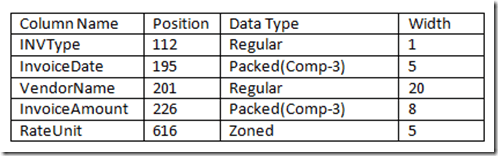
    The first thing you need is a definition of the EBCDIC file. You will need to know where the columns are at in the file and the column widths. You will also need to know the type of data in the columns such as Packed, Regular, or Zoned.  The File in this example is 1100 characters across. You will only define a few columns to simplify the example.
    Here is the column layout of the EBCDIC file:
 image
    You will need to create a Flat File Connection in the connection manager of your package. Set the Format to Fixed Width and the Code page to the proper code page of your EBCDIC file. The most popular in the US is 1140 IBM EBCDIC US/Canada 37 + Euro.

image

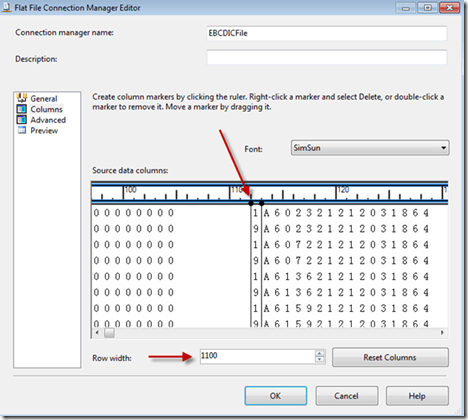
    Click on the Columns node in the Flat File Connection Manager editor. This is the long tedious part of the process. You have to map every field manually. That is why you need the definition of the file to tell you where the columns are and the data types of the columns.
    The First Step is to set the Row Width at the bottom of the Editor. Then you will need to click in the column screen to add the column dividers. This need to be checked and double checked because it cannot be altered later. If you make a mistake here and close the connection manager, you must click reset columns and start all over again. The editor does not let you make changes to the columns after it is saved. Hopefully this is changed in a future release.
 image
    For the Regular fields you will see the data showing normally. In the Packed Decimal Fields you will see funny characters, and the zoned fields will show characters also. If everything is strange characters then you might have the wrong codepage selected. Go back to the general page and try changing the codepage if the data is all unreadable.
 
 image

image
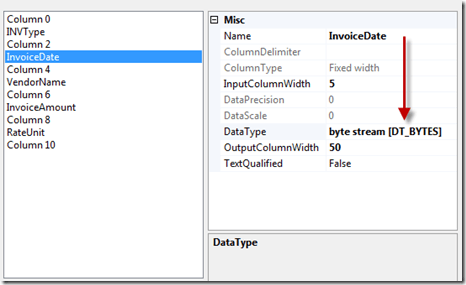
    After setting the columns you will need to set the columns types and name the columns. Click on the advanced node in the Flat File Editor and Select the first column. In this example you are only defining five of the columns. So there will be columns between each column you are ignoring. Each column that is Regular or Zoned data set the data type to Unicode String. For the Packed Decimals set the data type to Byte Stream and the output width to a larger number than the input to handle all of the extra data in the packed field. Double the size should be enough but it does not hurt to increase it a little more to be safe. The packed field width in this example is 5 and the output is 50.
 image
    Click on the Preview node in the editor and your preview should show readable data in all the fields except the package decimal (Comp-3) fields. In this example the Invoice date and the Invoice Amount are packed decimal and therefore have the strange charters showing. Click ok to save the connection manager.
 image
    In a data flow drag in a Flat File source and select the newly created connection manager. In this example you unchecked the undefined columns in the columns node of the flat file source.  This way you are only dealing with the columns you care about in the data flow.
 image
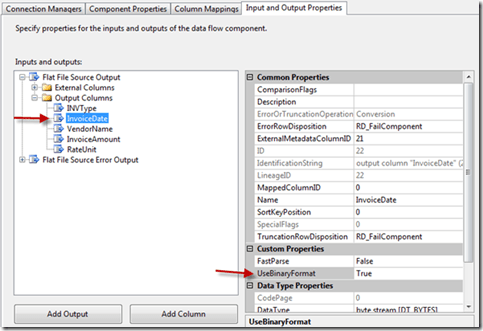
    You need to make one more change to the flat file source. Right click on the Flat File source and select Show Advanced Editor. Click the Input and Output Properties tab on the top right. Click the plus to expand the Flat File Source output and the Output Columns. Select the packed decimal fields and change the UseBinaryFormat property to True. Now click Ok to save the source.
 image
    Below is the data viewer right after the Flat File Source. You can see the hexadecimal fields coming through and they are readable. The Vendor Name is readable and the rate unit is a number with a trailing character.

image
    The next transform will be a data conversion transform.  The fields that are packed decimal (comp-3) can now be converted to a Unicode string. This will create a new column for each field. These new fields will be in text format and can be edited with derived columns transforms.
 image
    Below is a data viewer image showing the data after the data conversion transform. Notice the hexadecimal value in the original columns and the string values in the new converted columns. These new columns can now be altered with derived columns to convert the dates and money amounts before they are written to a SQL database.
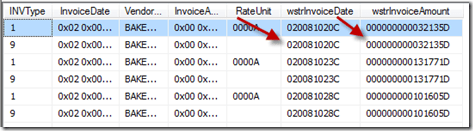
image
 
    The next transform will be a Derived Column transform. You will use this to split the data in the Unicode string columns. The packed decimal fields have a string of numbers and a single character at the last digit. This digit indicates the sign of the number.

C = Signed Positive
D =Signed Negative
F = Unsigned

    This first derived column is simply going to split the sign character from the numbers. The date field has this sign character, but it is not used, so all you need from that column is the number. The RateUnit column is a Zoned Decimal so you will need to split the last character from that also. Here are the expressions used to accomplish this task. You also multiple the amount field by the proper number of decimal places that are defined in the field. In this example it has 2 decimal places.

(DT_I4)(SUBSTRING(wstrInvoiceAmount,1,LEN(wstrInvoiceAmount) – 1)) * .01
SUBSTRING(REVERSE( [wstrInvoiceAmount] ),1,1)
(SUBSTRING( [wstrInvoiceDate] ,2,LEN( [wstrInvoiceDate] ) – 1))
SUBSTRING(REVERSE(RateUnit),1,1)
(SUBSTRING(RateUnit,1,LEN(RateUnit) – 1))
 image
    From this derived column you get four new columns, the number from the amount and rate, and the sign character from the amount and rate. The date column has the leading zero and the ending character removed from the date string.
    In the next derived column transform you will set the sign for the amount and rate column and convert the string date to the date data type. Below is the code to accomplish this. In this code you are checking the sign character for the letter “D” on the amount. If it is “D” then you multiply the amount by negative one, else you leave it positive. For the Rate, which is a zoned digit, you check the letter for the letter A-I and the curly bracket {, who indicate a positive number, and I-Z and the other curly bracket } indicate a negative number. There are other possibilities in zoned digits, but in this example you are assuming this is the only possibility. You could save the letter A-I and the bracket in a variable and use the variable instead of hard coding in the letters in the expressions. This would be the best practice. The rate may also need to be multiplied by .01 to set the decimal places. In this example it is an integer.
    The date string is broke up into substrings and the hyphens are added then all of that is type cast to a date. You can go into the configure error output and set it to ignore errors for bad dates.  If you set it to ignore errors any bad dates will be null. You could use and check for nulls in another derived columns afterwards and set it to a default date if you need.

wstrInvoiceSign == “D” ? numInvoiceAmount * -1 : numInvoiceAmount
(DT_DBDATE)(SUBSTRING(wstrInvoiceDate,1,4) + “-” + SUBSTRING(wstrInvoiceDate,5,2) + “-” + SUBSTRING(wstrInvoiceDate,7,2))
FINDSTRING(“{ABCDEFGHIJ”,wstrRateChar,1) > 0 ? [intRate] : [intRate] *-1
wstrInvoiceSign == “D” ? numInvoiceAmount * -1 : numInvoiceAmount

image
 
    Here is the final Data viewer and these columns can be mapped to a SQL table. If you want the columns to be VarChar instead of NVarChar then you will need to type cast the columns with the non Unicode type cast in the last derived column (DT_STR).  You might also need to set some of the derived columns to ignore errors so bad dates or bad numbers can be passed through as nulls.
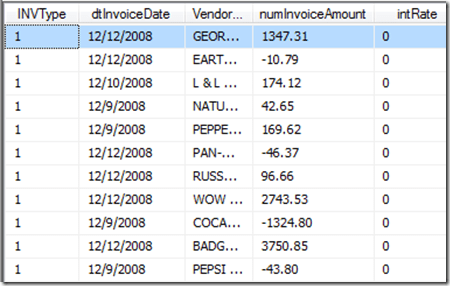
 image
Let me know if you have any EBCDIC to ASCII issues. I love a challenge. If you are an EBCDIC master and you see anything you have wrong here please let me know.

Posted in SSIS, Syndication | Tagged , , | 10 Comments