Creating a Rolling Date Range Named set in MDX

One Client I was working with wanted a named set that would give them the last 5 years. Of course this needed to be a rolling 5 years so it automatically moved the years up every January.

To create this I used the StrToMember function in MDX.

First To create a basic date range in a named set the syntax would be:

[Admit Date].[Year].[2005]:[Admit Date].[Year].[2010]

But this would require a manual change every year. To make the Named Set a Rolling 5 years you will need to use a few functions.

StrToMember() = Convert a String to a member that the MDX calculation can use in a tuple or set

Now() = Gets the date and time at the moment it is call

Year() = Gets the year of the given date

DateAdd() = Subtracts or adds to a date

CStr() = Converts a number to a string

So you will need to build two members, one for the current year and one for 5 years ago.

The current year syntax is:

strtomember(“[Admit Date].[Year].[” + cstr(year(now())) +”]”)

Notice the strToMember surrounds the entire statement. Then you have year getting the year of the current date. The CSTR function is converting the year to a string so it can be combined with the rest of the string. The strToMember the converts this all to a valid member.

The next member is the year 5 years ago. This is just like the current year member except you use the DateAdd function to subtract 5 years.

The syntax for the second member is:

strtomember(“[Admit Date].[Year].[” + cstr(year(dateadd(‘yyyy’,-5,now()))) +”]”)

Now just take the first and second members and place curly brackets “{}” around them with a colon “:” in the middle. The end result will look like so:

{strtomember(“[Admit Date].[Year].[” + cstr(year(dateadd(‘yyyy’,-5,now()))) +”]”):strtomember(“[Admit Date].[Year].[” + cstr(year(now())) +”]”)}

clip_image002

Posted in mdx, SSAS, Syndication | Tagged , | 1 Comment

SSAS Joining Facts at Different Granularities

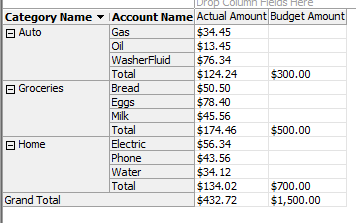
In an SSAS cube you sometimes need to connect a dimension at a different granularity than other dimensions. For example, if you have budget measures and actual numbers. If you are trying to budget your expenses you budget at a higher level than the actual amounts. You budget money for groceries, not for Eggs, Milk, and bread. But your actual amounts will be down to the individual items.

image

In the cube browser image below you can see this in use. Notice the budget numbers only show on the category level and not on the individual items.

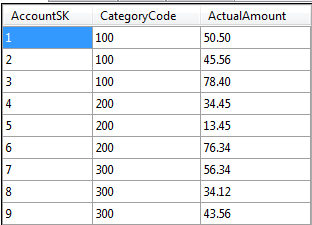
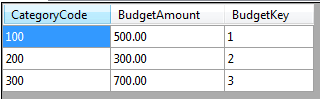
Here are the tables being used in this cube.

FactActuals

image

FactBudget

image

DimAccount

image

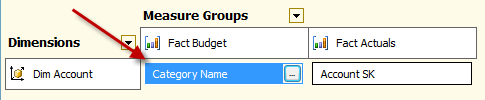
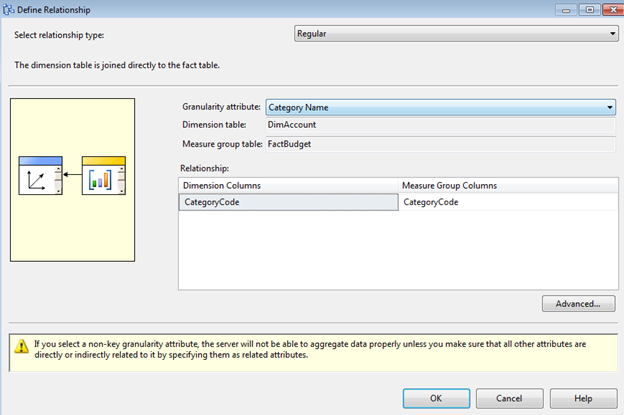
To set up this you will need to open the dimension usage tab in the cube editor. Click on the connection between dim account and fact budget and set up the category code as the key between the tables. The category code will be the relationship between the dimension and the fact table. A foreign key between the tables does not need to exist.

image

image

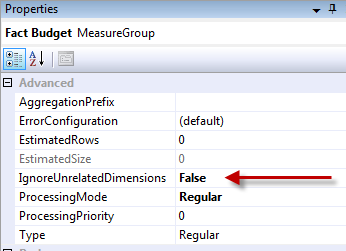
One other change is to set the budget measure group to ignore unrelated dimensions. This is in the Cube Structure tab, click on the budget measure group and change this property. It will need to be false, I know this seems backwards.

image

That is all you need. Let me know if you have any questions.

Posted in SSAS, Syndication | Tagged | 1 Comment

Report from a Cube in Reporting Services

Data warehousing has become a staple of businesses to help make business decisions. From these data warehouses you can develop an Analysis Services cube which allows for fast reporting. Creating reports in Reporting Services 2008 from a cube is very different from a normal SQL query. We are going to walk through creating a report from the adventure works 2008 analysis database cube. Adventure works is freely available from codeplex. You will need to download and deploy the cube to have it available in reporting services as a data source. After you have the adventure works cube deployed you are ready to start building a report in BIDS (Business Intelligence Development Studio).

1. In BIDS Click File> New > Report Server Project

2. Set the name to CubeReport

3. In solution explorer Right click on the reports folder and select New Item > Report

4. Change the name of the RDL file to CubeReport

5. Click Add

6. In the Report Data Window on the left select New >Data Source

7. Set the Name to AWCube

8. Change the Connection type to Microsoft SQL Server Analysis Services

9. Click Edit

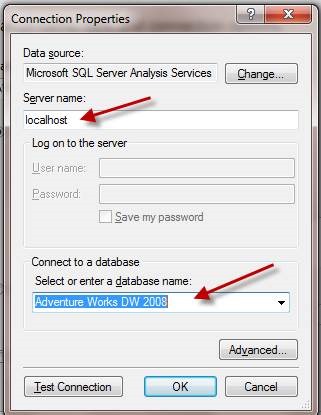
10. Enter in your server name(Example: Localhost)

11. Select the Adventure Works DW 2008 from the database drop down menuclip_image002

12. Click ok twice

13. Right click on the AWCube data source and select add Dataset

14. Change the data set name to Sales

15. Click the Query Designer button

This window is the query designer for MDX. MDX is the language used to pull data from a cube. MDX stands for Multi Dimensional Expressions. When you think of pulling data from a cube you need to think about a three dimensional cube where the data is in the cube and the edges represent how you can view that data. For example, date, geography, product could be the edges, and sales amount as the measure in the cube. You are going to use date and geography from this cube.

Notice there are two sections in the Query Designer. The top section is for dimensions that you want to use as a filter or parameter for your report. The lower section is for the measures and dimension you want to show on the report. You are going to drag measures, date, and geography dimensions into the bottom section. You are also going to drag the date dimension into the top section to be used as two parameters on the report.

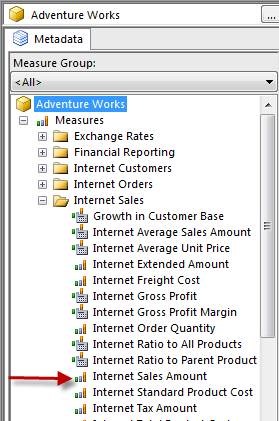
16. Under Measure > Internet Sales, drag in the Internet Sales Amount to the bottom section

clip_image004

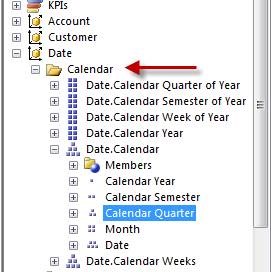
17. Under Date>Calendar, Drag over the Month, Quarter, and Year into the bottom section

clip_image006

18. Under Geography drag over the State-Province and Country

clip_image008

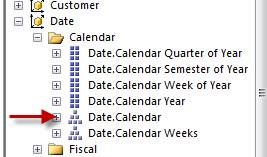
19. Drag over the Calendar Date Hierarchy into the top section

clip_image010

20. Change the range operator to Range (Inclusive)

21. Place a check in the two checkboxes under Parameters

clip_image012

22. Click OK in the two open windows

Now you will see two parameters created automatically for you under the parameters folder in the Report Data window. In most reports you want the parameters to have available values. The MDX query has already created two hidden queries which are used in the available values for both parameters. Since both queries are identical you can delete one of them and use the just one query in each parameter.

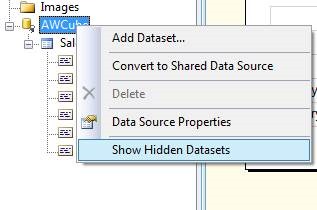
23. Right click on the AWcube datasource

24. Place a check next to Show Hidden Datasets

clip_image014

25. Right click on the ToDateCalendar hidden query and delete it.

26. Double Click on the ToDateCalendar Parameter to open the parameter editor

27. Click on available Values

28. Set the dataset to FromDateCalendar

29. Set the Value field to ParameterValue

30. Set the Label Field to ParameterCaptionIndented

31. Click OK

32. Drag a Matrix from the toolbox to the report

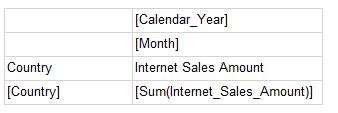
33. Drag in each field to match the figure below

clip_image016

The Internet Sales Amount is in the Data section of the matrix

34. Change the background color of the headers to light blue and bold text

35. Change the format property of the Internet Sales Amount to “C”(Currency)

36. Preview the report

37. Set both parameters to “CY 2001”

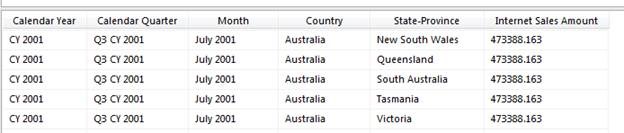
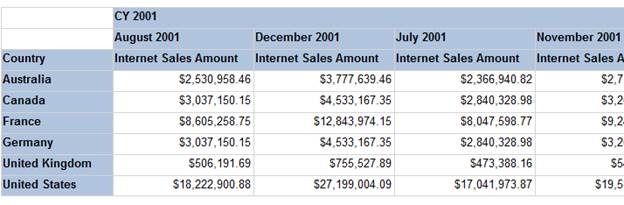
38. The report should look like the figure below

clip_image018

There is a lot more clean-up you can do on this report. Adding items like collapsible groups on the columns and rows make it easier to see the data desired. Removing the words “Internet Sales Amount” from every column and making just a single header with that term would be easier to read. Now you know how to use a cube to create a report. The parameters work differently than in a normal SQL query report. It creates the hidden queries automatically for you. In the case of the above example the two hidden queries were identical. In these cases you can increase performance be eliminating one of the queries and using the same query in both parameters. Notice the months are not in order also. This is because they are in alphabetical order. This can be sorted using the month number in the group sorting options.

Posted in mdx, SSAS, SSRS, Syndication | Tagged , , | 3 Comments

Create a Named Set with all but one Member in MDX – SSAS

I was trying to create a Named set in SSAS 2008 using the MDX calculations. I wanted to include all of the members of a hierarchy except one of them. I started with trying to use the filter expression and this worked but was very cumbersome to get the syntax right. I finally switched over to the MDX function “Except”.

To create a Named Set in Analysis Services Click on the Calculation tab and then the Named Set button across the top.

clip_image002

The Code in the Named Set was:

Except

(

{[Referral Type].[Referral Type Desc].Children},

{[Referral Type].[Referral Type Desc].&[ER TO IP]}

)

Here is an image of the Hierarchy. The arrow points to the member I want to remove from the Named Set.

clip_image004

To Test it I dragged over the hierarchy into the cube browser and dragged the named set up top. You can see the ER to IP member is missing.

clip_image006

Posted in mdx, SSAS, Syndication | Tagged , | 1 Comment

Comparing Previous Rows in SQL

I had a client recently that needed me to get the direction a student’s GPA was headed on a regular basis.

To do this I needed to get the last GPA record on the table and the previous GPA. The dates on these rows were different for different schools and each year the dates could change, so the query had to be dynamic. I could not hard code in the dates. I also wanted to avoid a cursor due to performance issues.

This was very easy with Common Table Expressions (CTE’s). Below is the query. The first CTE (CurrentDate) gets a list of the GPAs and adds a row number to the results. The second CTE (PrevDate) is the same query but I added a one to the row number. The next CTE (LastDate) Gets the last date the GPA was recorded.

Now with all of those CTE’s complete you can combine them with the finally query to get the comparison of the GPAs. You do an inner join with last date to eliminate all of the older dates. Then join the current date and previous date CTEs, since the row numbers are off by one number the previous GPA and the current GPA are on the same row now. Then it is a simple subtraction to determine if the GPA is rising or falling.

With

CurrentDate as(

Select f.DimDWPersonKey, f.SchoolDateKey,isnull(f.CurGPA,0) CurrentGPA, ROW_NUMBER() Over(Partition by dimdwpersonkey order by dimdwpersonkey,schooldatekey ) RowNum

From FactSchoolPerson f

),

PrevDate as (

Select f.DimDWPersonKey, f.SchoolDateKey,isnull(f.CurGPA,0) PrevGPA,(ROW_NUMBER() Over(Partition by dimdwpersonkey order by dimdwpersonkey,schooldatekey )+1) RowNum

From FactSchoolPerson f

),

LastDate as(

Select f.DimDWPersonKey, Max(f.SchoolDateKey) LastDate

From FactSchoolPerson f

Group by f.DimDWPersonKey

)

Select cd.DimDWPersonKey, cd.CurrentGPA – pd.PrevGPA GPADirection

From CurrentDate cd Left Join

PrevDate pd on cd.DimDWPersonKey = pd.DimDWPersonKey and cd.RowNum = pd.RowNum Inner Join

LastDate ld on ld.DimDWPersonKey = cd.DimDWPersonKey and ld.LastDate = cd.SchoolDateKey

Where pd.SchoolDateKey is not null

Order by cd.DimDWPersonKey

Posted in Syndication, T-SQL | Tagged | Leave a comment

Pivoting weird data in SSIS – Sort of…

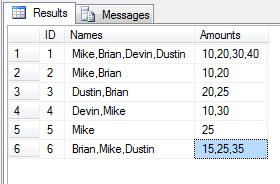
Sometimes we get data in some bad forms. For example look at the below table:

clip_image001

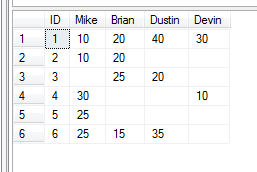
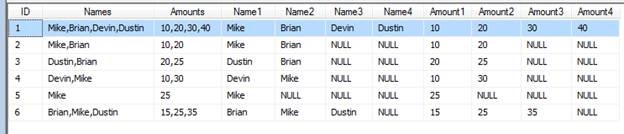
The names and the amounts are comma separated in two different columns. Let’s imagine we need to get this data into a table like the one below:

clip_image002

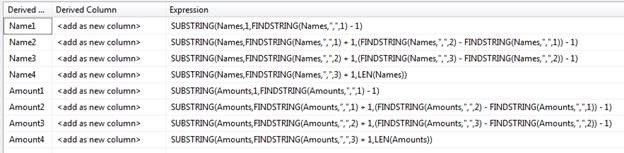
Notice the column names are the names that were in the data. This can be accomplished with derived columns and conditional splits in an SSIS data flow.

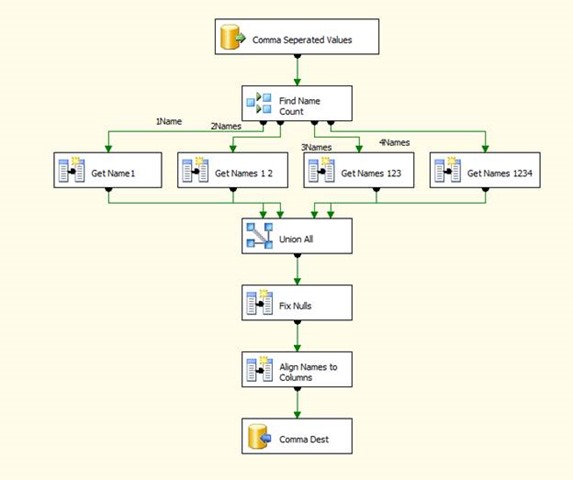
Here is an example of a data flow that accomplishes this:

clip_image004

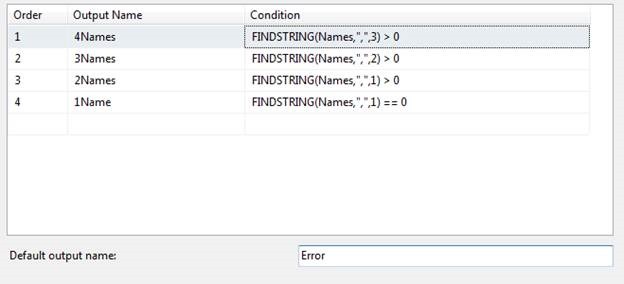
After the source the first component is the conditional split.

clip_image006

The conditional split sends the rows down different paths based on the number of commas in the data. This makes the derived columns afterwards much easier to handle. If not then we would have to nest a bunch of conditional statements in the derived columns.

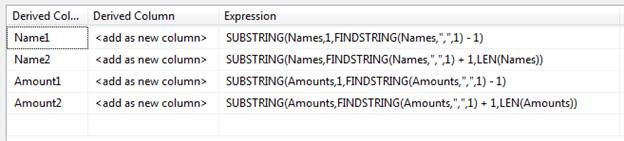
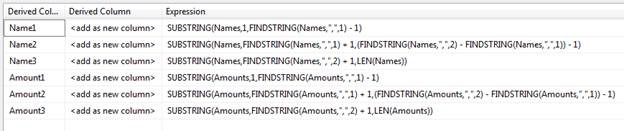
The next steps are the derived columns. These will do different work based on the number of commas in the data.

With only one name in the data:

clip_image007

Two Names:

clip_image009

Three Names:

clip_image011

Four Names:

clip_image013

In these derived columns you are taking the items between the columns and separating them into their own columns. Here is a data viewer showing the data after the union all.

clip_image015

In the next step I decided to get rid of the nulls so the last derived column would be easier to write. If you want to leave in the null you can, but then the last derived columns will need to have a lot of ISNULL checks.

clip_image016

Now that the nulls are gone, and you have everything divided into individual columns, you can use one more derived column to arrange the data into the correct columns.

clip_image018

And now the mapping to the destination table should be easy. The ID column is mapped to ID and the names are mapped to their correct columns.

clip_image019

This method will work if you have a limited number of columns. The maintenance on this would be a headache if you have to add or remove names frequently. I would not suggest this method if you have frequent column changes.

Posted in SSIS, Syndication | Tagged | Leave a comment

SSRS – Using a Parameter to make Dynamic Columns

Multiple value parameters are a common tools used in SSRS. You can use this tool to select which columns actually show on a report. You will need to create a multiple value parameter and place an expression on each column on the report. More specifically the expression needs to be on the column visibility property of the columns.

Here is an example report with five columns.

clip_image002

Here are the parameter available values with the column choices. I hard coded these choices into the available value fields; you could use a query to get this information. The parameter is text value and multiple values are allowed. I placed a two digit number into the value fields and I will use them in the expressions for the column visibility. The reason I used a two digit number is so this technique will work for reports with more than 9 columns. I am going to look in a comma separated string that contains a list of all the values selected in the parameter. If I used single digits then the number one would be found in other numbers like ten or eleven. If you have more than 99 columns then you will need three digit numbers, and you need to tell your end user that they are crazy for wanting a report with 99 columns.

clip_image004

I right clicked on top of the first column and selected column visibility. For the columns visibility property I selected hide or show based on an expression and clicked on the expression button then typed in the following expression for the first column.

=iif(instr(Join(Parameters!ColumnSelect.Value,”,”),”01″)>0,false,true)

Let’s break this down into the individual functions. First the Join:

(Join(Parameters!ColumnSelect.Value,”,”)

The function takes each of the selected parameter values and joins them together in a string separated by the delimiter you specify at the end of the join. If the end user selects all of the columns the join would result in “01,02,03,04,05”.

Next the inStr function:

instr(Join(Parameters!ColumnSelect.Value,”,”),”01″)

The inStr function looks through the list of joined parameter values and determines if it exist in the string. If it does it will return the number of the character location when the string is found. If it is not in the string then the function will return a zero. This is why I used two digit numbers. If I was to search for a one and I had a row ten, it would find a match. Each column will search for a different string. The first column is searching for “01”, the second “02” and so on.

The next function is the iif:

=iif(instr(Join(Parameters!ColumnSelect.Value,”,”),”01″)>0,false,true)

The boolean statement in the if then is checking the value returned by the inStr function to see if it is higher than zero. If it is higher than zero then the column number is in the string of parameter values and we need set the hidden value to false. If not then we set the hidden property to true.

Here is an example of the report with a few columns selected. I placed a text box at the top of the report to show the joined values of the parameters.

clip_image006

Posted in SSRS, Syndication | Tagged | 6 Comments

AS400 Program from SSIS

If you need to call an AS 400 program from an SSIS package this can easily be accomplished with an Execute SQL Task. This can be made even easier with two variables and an expression too. The AS400 program QCMDEXC is usually called using the CALL QSYS.QCMDEXC command. This is then followed by a command like CLRPFM FILE(MDAVIS/APPLSQL). Then this is followed by a ten digit string of numbers that contain the number of characters in the command. Then a period followed by five more zeros.

So the complete above command would be:

{CALL QSYS.QCMDEXC (‘CLRPFM FILE(MDAVIS/APPLSQL)’, 0000000026.00000)}

This can be typed into the Execute SQL Command or typed into a variable. But wouldn’t it be nice if the numbers after the command would automatically generate? With a small expression we can make that happen.

Here are the two variables I created on my SSIS package:

strAS400CMD – String variable for the command

strAS400FullCMD – String variable evaluated as an expression to complete the command

clip_image002

The variable strAS400CMD holds the value of “CLRPFM FILE(MDAVIS/APPLSQL)”.

The variable strAS400FullCMD holds the expression

“{CALL QSYS.QCMDEXC (‘” + @[User::strAS400CMD] + “‘, “+

Right(“0000000000″ + (DT_WSTR, 10) (Len( @[User::strAS400CMD])) ,10)+”.00000)}”

clip_image004

This expression will automatically calculate the length of the string for the command variable and create the number string needed afterwards. In the Execute SQL task set the SQL Source Type to variable and select the strAS400FullCMD variable.

clip_image006

Posted in SSIS, Syndication | Tagged , | Leave a comment

Bulk Insert Task SSIS – Path Specified Cannot be Found or File Does Not Exist

When using the Bulk insert task in SSIS, you might encounter an error stating that The File Does Not Exist or The Path Specified Cannot be Found. This is usually due to the fact that the file must be on the same server as the database. In other words, it you are connecting to a remote machine the flat file must be on the remote machine. The connection to this file in the SSIS package must use a UNC path and not a mapped drive.

clip_image002

Posted in SSIS, Syndication | Tagged | Leave a comment

Contract vs Permanent Employment

There is a lot of discussion online about the debate of what is better, being an independent contractor or a permanent employee. I have run into this myself. I am a permanent employee for Pragmatic Works, and I know the rate they are billing me out at is much higher than my actual pay. So why not go out on my own and make a lot more money right? Let’s examine this.

One problem can be that most just do simple math and do not look at the other items that affect them and their family. Yes the hourly rate may be more. But you lose benefits, flexibility for time off, stability, security, and more .

Let look at a typical example:

Contractor: Billing out at $170 an hour, if that person is billable 75% of the year, which is the typical amount for a consultant, they can make $353,600/year. That is assuming they can hit that 75%.

If that same person was working full time and making a salary of $120k/year, it seems like this person is crazy for not going contract. But there is a lot more to this move than just going contract. The biggest question is, will they be able to keep contracts coming in to remain billable? They would either need to hire someone to find contracts, or take some of there billable time to search for more work. They also would need time to get training on new technologies to stay up to date, and they want to attend conferences also. All of these take away from their billable time. So lets say their billable percentage would be reduced to 65% due to  contracts/training/conferences. That would bring their salary down to about $230k/year.

Now lets look closer at the permanent employee:
Base salary= $120k
401K Match = $4,800
3 Weeks Vacation = $6,900
3 Sick Days = $1,380
Health insurance coverage = $2,500
Possible Bonuses = $1,000
Travel Reimbursements = $3,500
Training/ Certificates = $2,000
Laptop and Equipment provided and upgraded regularly $2,000
Licenses all needed software $5,000
Tax Deductions = $3,000

Total Compensation = $152k/year

So this looks like a huge difference, wow, $230k a year versus $152k/year. But there is a lot more non monetary items to consider. This following list contains some of the perks while working at Pragmatic Works, other companies may not have the same benefits.

  • A team with a wealth of knowledge for backup
  • Free Training materials for all needed technologies
  • Raises Based on Performance and Skills
  • Travel Limited to 50%
  • Help in obtaining MVP Status
  • Connections inside Microsoft
  • Opportunities to become an author due to company connections

And the one item people brush over is:

image

“While on the bench Pay continues”

Yes, this may seem like an obvious one, but this one is important. Let’s say the contractor has a family/medical emergency and needs to take off in the middle of a contract. The contractor may lose the contract and the buyer may look for a replacement while he is gone. They can do this because he has broken the contract. This may seem cruel, but if a company has a deadline, especially something for auditing or government mandated, they may have no choice. When the contractor returns, he now has to find a new contract, and has received no pay for a while, and is still not getting paid until he finds a new contract. This can be really tough on him and his family, especially with kids.

Let’s take the same situation with a permanent employee. The employee calls their employer to inform them they need to take leave due to family/medical issues. The employer find a replacement consultant from the team to get the job done and keep the client on track. During the time out the permanent employee still receives a paycheck maybe even disability pay from their benefits. When the employee returns, the company has another contract ready to go for them.

This is a situation where the stability of a permanent position can be seen. Stability is a factor that seems to be over looked, but it should be a major factor in your decision. Remember, this decision will  affect you and your family.

Another major factor is having a Strong Team for backup. When working as a permanent employee. Imagine a contractor finding himself coming to the end of a contract and the client ask them to stick around, but the next contract would include items they are not that familiar with yet. The contractor would need to ask for time to get trained on this technology, and during this time they may not receive any pay. There is a good chance that the client would have to find someone else and the contractor would be out looking for a new contract.

In the same situation as a permanent employee they would have a team behind them to back them up. Their employer could send in a coworker that has the skills needed to work along side to train on the job while building a solution for the client at the same time. This would keep the employees working and training while still getting paid. This collaboration would be harder to pull off as an independent contractor.

One other situation is a back up of hardware. If a contractor is on site with a client and their laptop bites the dust. As a contractor they would need to buy another laptop right away and install all of necessary software to get back up and running. This could cost them a couple days and these are days they may not receive  pay. If they were a permanent employee, the consultants employer could overnight them a laptop they already have set up ready to go. So no downtime and no expense of buying a new laptop.

Finally, from my own personal experience, I have seen a few employees leave and try to be independent contractors, and all of them have either, come back and asked for their old job back, asked for contract work from us, or taken a permanent job with another firm eventually. I have spoken to some independent contractors and the advice they gave me is “Have 6 months of savings ready to go at all times, you never know when the well will go dry.” I am not saying it is impossible. There are some successful independent contractor out there, I am just giving you food for thought before you try to make that leap.

By the way, Pragmatic works is hiring, email me if you know SSIS, SSRS, and SSAS, and would like to work with a team of SQL Server MVP’s and Authors.

Posted in Business Intelligence, Community, Training | Tagged , , | 2 Comments