SQL PASS Summit 2011 The Aftermath

I just returned from Seattle, WA and my first time speaking at SQL PASS Summit. I did the SQL Smackdown T-SQL vs SSIS Loading a Data Warehouse with Adam Jorgensen.

The session was a hit, it was standing room only and the room was full from beginning to end. Adam did a great job showing the T-SQL method and I showed the SSIS method.

In the End The referee Devin Knight and Adam jumped me a stomped me into the stage. I survived and will live to put on another SQL Smackdown.

You can download the files from this session here.

Posted in PASS, SSIS | Tagged , , , | Leave a comment

Setting up SSIS Auditing Part 1

Auditing in SSIS can be a real headache. In this two part series blog I am going to try to make it a little easier. You can also download my white paper and sample files on Auditing SSIS here. You can also see this post and more at SQL University.

SQLUniversity

SQL Server Integration Services (SSIS) is a powerful tool used to move data. Once you have created several SSIS packages and scheduled them to run in your production system you inevitable have failures at some time. Having a robust auditing framework will make troubleshooting and performance tracking your packages much easier.

Imagine you have dozens of SSIS packages that run in SQL Agent jobs throughout the night in your production system. You arrive at work the next morning you find data is missing for reports that are critical to the business. It is your job to find out why this data is missing. First you need to know the package that is loading this data. Next you need to find the error (if there is one) or any other issues with the package or packages.

clip_image002

Figure 2

The first stop for most SSIS troubleshooters is the SQL Agent job log. In this example all of the packages ran with no error last night. You can see this job history in Figure 2. What now? If you have logging or a form of detailed auditing on your packages then you would be able to track down the issue. In this example the issue was the package loaded no rows due to a where clause in a Data Flow Source so there was no error to find. This problem would be obvious if you have auditing on the row counts of your Data Flows.

clip_image003

Figure 3

With packages spread across multiple servers, having all of the auditing data in one location makes tracking SSIS package issues and performance easier. A form of centralized auditing would log the run time information of packages from each of your servers. In Figure 3 you can see an example of this type of setup. There is a central database that holds all of the auditing data. Several methods exist for monitoring SSIS, native logging, and custom logging frameworks.

1.1 Logging

The native logging feature in SSIS can write information about the package run into several locations. To open the logging screen right click in the control flow of an SSIS package and select logging. The logging menu can be seen in Figure 4.

clip_image004

Figure 4

Logging to Files

Once in the Logging window you will need to place a check next to the package name in the top left. Select SSIS log Provider for Text Files and click add. Then place a check next to the newly added log provider. Under Configuration select a file name where the logging information will be saved. See figure 5 for an example of this set up.

clip_image006

Figure 5

Under the Details tab you can select which options you would like to save and on which events. Select the following event handlers, OnError, OnWarning, OnPostExecute, and OnPreExecute. These Events call any tasks you have added to the corresponding Event Handler window. For Example, when a task is run in the Control Flow the onPreExcute task is called, if you have placed an Execute SQL Task in the onPreExecute event handler window, the Excute SQL Task would execute in the Event Handler. If the Control Flow task causes an error, the onError event will be called and execute any task under the onError. These are the most common event handlers logged for packages. They tell you about errors, warning, start times, and stop times.

The advanced button at the bottom of the details screen allows you to select the information collected at each event. Leave the advanced settings at default for this example.

clip_image007

Figure 6

Once you have configured the text file logging for the package run the package one time by right clicking on the package name in the solution explorer and click execute package, and then open the log file.

Note: There is a Reset Package in the solution you can run to truncate the tables and move the file back.

In figure 7 you can see a small extract from the log file. This file is approximately 550 lines of text. This is a lot of information about a small package. A lot of the information is repeated also. Some of this repeating is due to the how the event handlers are fired in SSIS. The SSIS packages fire some events multiple times, once for the package and once for the tasks. This makes the logging cumbersome to read and hard to find the important information you are looking for in a logging solution.

clip_image009

Figure 7

Since this log file is a CSV you can open it in excel. A major problem occurs in trying to read through the error messages in Excel. Some SSIS errors contain commas in there description. This breaks the error up into separate columns. Trying to load this file into a table or some other data driven tool would be problematic at best. If you want to log the information to a table, you should select the SQL Server provider in the logging options in the first place.

Logging to SQL Server

Logging to a SQL Server table gives you querying power of the database engine. To set this up, go back to the logging menu by right clicking in the control flow of the package and select logging. Delete the text logging if it still exists. Once in the Logging window you will need to place a check next to the package name in the top left. Select SSIS log Provider for SQL Server and click add. Then place a check next to the newly added log provider. Under Configuration select a Database where the logging information will be saved and run the package. This example will log to a database named testing.

The same logging details and options exist as in the text file logging example above. Select the following event handlers, OnError, OnWarning, OnPostExecute, and OnPreExecute. Now run the package. After the package has completed, open SQL Server Management Studio (SSMS) and run the following query in in the Testing database selected in the logging options.

Select * From SysSSISLog

This will return the logging data. This table is found in the system table folder of the database. Now that the data is in a table you have a lot more control of how to display the data. The issue still exist where the messages (which is the information you need) is duplicated. It is shown once for the package and once for the tasks that sent the message. To control how often the data is written to the table you will need to build a custom solution in the event handler of the package.

Posted in SSIS, Syndication | Tagged | 1 Comment

Using Configuration Tables in SSIS 2008/2005

SSIS packages are great ETL tools and can do just about anything you need in terms of ETL. Most organizations start out creating SSIS package one by one until they have dozens, hundreds, or even thousands of packages. I have worked with one client that ran over 4,000 packages. This can be a nightmare to maintain. You can save yourself a lot of work by deciding upfront how to configure your packages using configuration files or tables. We are going to discuss configuration tables in this article.

We are going to look at a simple example of passing information to a package with a configuration table. Then we will go over using configuration tables on multiple packages. Imagine running dozens of packages that point to a server and the server name changes. If you have a configuration table that is feeding this server name to every package you can make a single change to the configuration table and all the packages are updated. This can reduce your maintenance time significantly.

We are going to build a couple of simple packages with connections. These packages will connect to the adventure works database which is freely available on codeplex. Since you will not being pulling any data you can use any database you would like.

1. Drag in an Execute SQL Task into a blank SSIS package.

2. Double click on the Execute SQL Task to edit it.

3. Click on the connection drop down menu and select New Connection.

4. Click New.

5. Enter in your server name and the adventure works database in the Connection Manager.

6. Click ok twice to get back to the Execute SQL Task.

7. Enter “Select 1” as the SQL statement

(This query will not pull any data. It is just used to test the connection)

8. Click ok and debug the package. The Execute SQL task should turn Green indicating success.
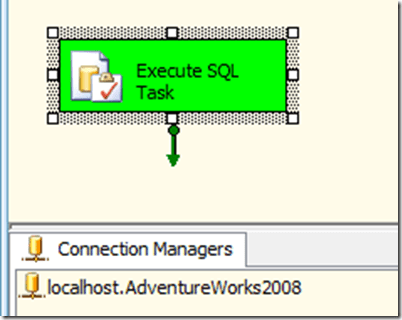
image

Now you will create a configuration table to feed the value of the connection to the package.

9. Stop the package from debugging.

10. Right click in the connection manager and select new OLEDB connection

11. Create a connection to a blank database. In this example we will use a database called Config.

12. Right click in the control flow and select Package Configurations

13. Place a check next to Enable Package Configurations.

14. Click add; (Click next if the welcome screen appears.)

15. Select SQL Server in the Configuration Type drop down menu.

16. Set the connection to the Config Database

17. Click the New button next to the Configuration Table Dropdown menu.

18. Click ok. This will create a table in the Adventure Works database.

19. In the configuration filter type Development.
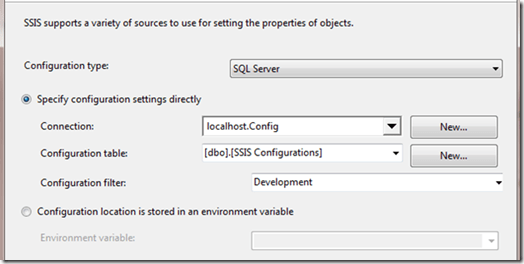
image

20. Click next

21. Place a check next to the connection string property of the adventure works connection
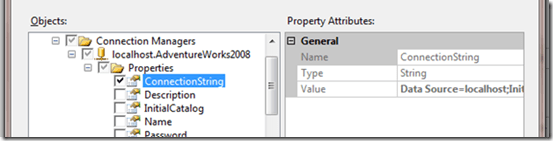
image

22. Click Next, Finish, and Close.

23. Debug the package again, the Execute SQL Task will still turn Green

The Execute SQL task is not using the connection saved in the connection manager. It is using the value that was saved in the config database on the SSIS Configurations table. You do not have to leave the name of this table. In fact most businesses have a practice of no spaces in table names. So you could have created the table name SSISConfig or any name you prefer. You can test where the package is getting the adventure works connection string by changing the connection on the package to a database that does not exist.

24. Double click on the adventure works connection in the connection manager.

25. Change the database name to adventureworks1

26. Debug the package and you should see the Execute SQL task turn Green.
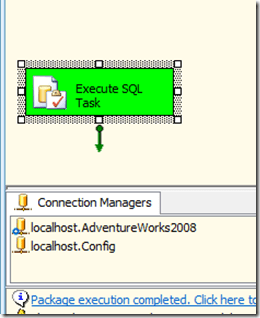
image

(There is a blue dot next to the Adventureworks2008 connection indicating the connection is fed from the configuration manger, this is a feature of because BI xPress.)

27. Open SQL Server Management Studio and view the values in the table.

image

28. Return to the SSIS package and make a copy of the package in the project. Click on the package in the Solution explorer and pres Ctrl+C then Ctrl+V. A copy of the package will appear below it in the project.

29. Double Click on the package

30. Debug this package.

Notice this new package runs successfully. It is using the same configuration table the first package is using. If you make a change to the table both packages will be updated. This is a major time saver in maintaining the packages in the future. Imagine having one hundred packages that have a single change like the name of a server or database name. Updating these packages becomes a one minute task instead of a one hour task. A proper configuration setup also saves you from having to redeploy the packages.

Posted in SSIS, Syndication | Tagged , , | Leave a comment

Creating your first Data Mining Structure and Model

Data mining is a great way to help your company make decisions and predict future values. The Data Mining Algorithms built into SQL Server Analysis Services gives you this power.
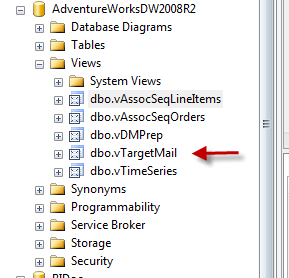
The Adventure works data base comes with views that are already set up to perform data mining. Let’s take a look at one of these views. Open the Target Mal view by right clicking on it in SSMS and select Design.
 image
The design view shows you the query used to create the view. The dim Customer Table and another view are used to create the Target Mail view. From Dim Customer we get a lot of the customer information and the other view has the bike purchase information. This gives you a simple view of who has bought a bike and the attributes of those customers.
In the query you can see a Case Statement that just gives a one for bike buyers and a zero for non bike buyers.
image 

Now that you understand the data you can go into BIDS and perform some data mining.
In BIDS start an Analysis Services project, and then create a Data Source and a Data Source View containing the Target Mail View.
The first step is to create a mining structure. You can think of the mining structure as the blue print for the data mining models that are going to be created on the mining structures.
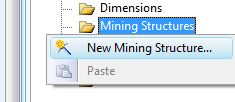
1. Right Click on the Mining Structures folder in the Solution Explorer and select New Mining Structure. Next->
image 

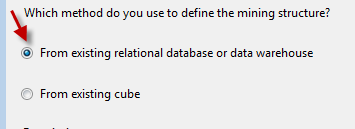
2. Click the radio button next to From Existing relational database or data warehouse. Next->
image 

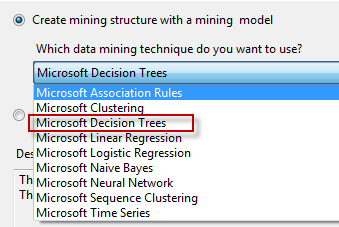
3. Select Microsoft Decision Trees. Next->
image 

4 Select the Data source view that contains the Target Mail View. Next ->
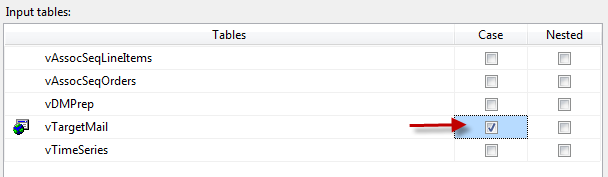
5. Place a check next to the vTargetMail view under case. Next –>
image

 
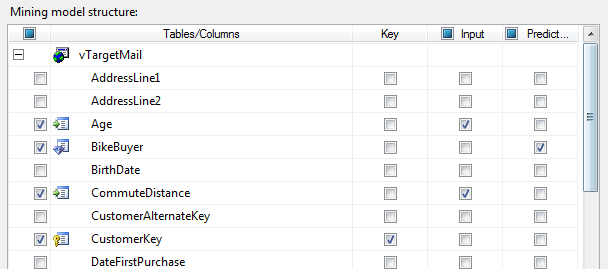
Now you are on the screen asking what data you want to use to train your mining model. Here you will place a check next to the columns you want to use in determining which members will most likely be bike buyers based on your existing customers. You also need to select a Key and a Predict column. The Key will be the Customer Key and should already be checked. The Predict columns will be the BikeBuyer because that is what we are trying to predict.
6. Place a check next to Bike Buyer under Predict.
7 .Place a check under input next to the following columns: Age, Commute Distance, Gender, House OwnerFlag, Mairtal Status, NumberCarsOwned, NumberChildrenHome, Region, TotalChildren, and Yearly Income. Next->
image 

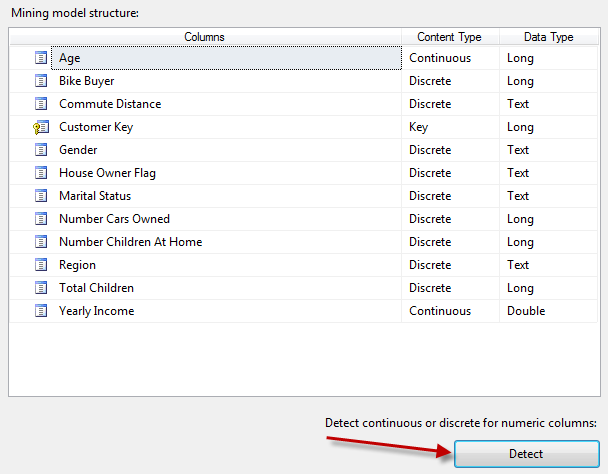
8. Click the detect button. This is setting the data types for the mining model.  A description of each of these types can be found here. http://msdn.microsoft.com/en-us/library/ms174572.aspx 
image 

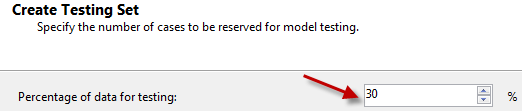
9. Leave the Percentage for testing set to 30%. Next->
image 

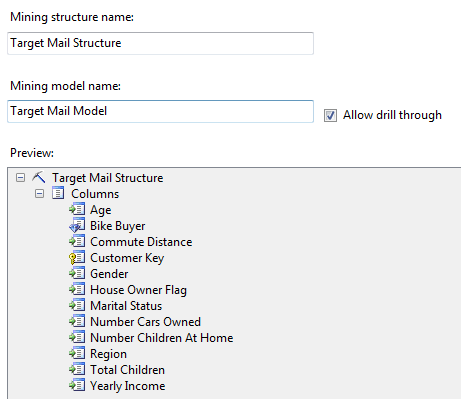
10. Name the Structure and Model and select Allow Drill Through. Finish->
image 

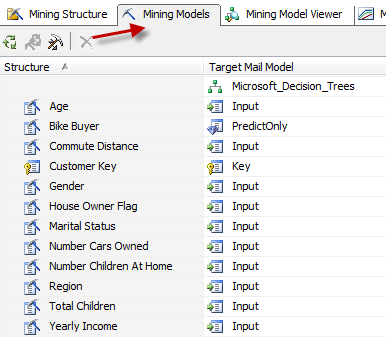
You have now created the Mining Structure and a Mining model using the Decision Tree Algorithm. Now it is time to process and deploy the model. Click on the Mining Models Tab and view the Model. Notice the Bike Buyer is set to Predict Only and the Customer Key is the Key. The rest of the columns are set to input.
image 

11. Click on the Mining Model Viewer, you will receive a popup asking to process and deploy, click yes. You might receive other popup warning about the number of rows, click yes.
 
image
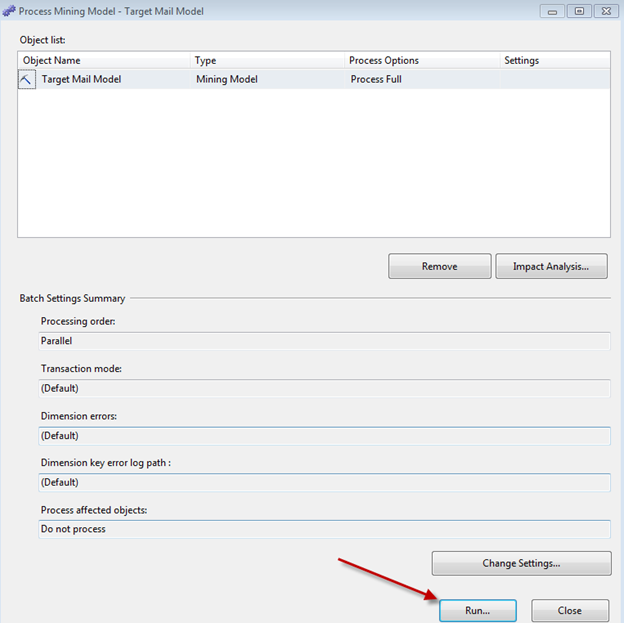
12. Click Run in the process screen.
 
image
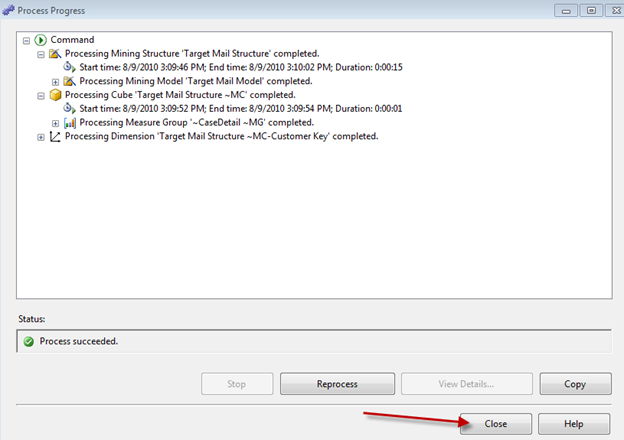
13. Click Close on the process screen once the process is complete.

image 

14. Click Close the process screen too.
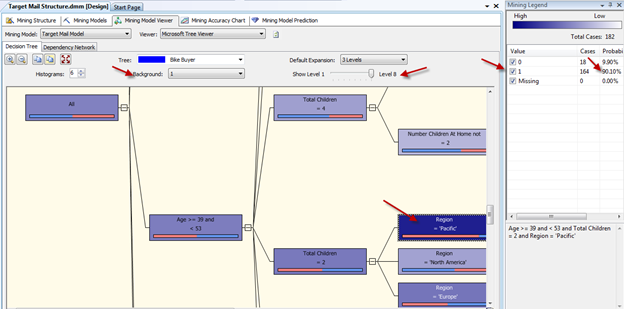
Now you will be in the Mining Model Viewer and be able to see the Decision Tree model Notice how age is in the first level of the tree. Now browse the model and you can see what traits of the customers are most likely to buy a bike. Change the background to 1 to see the most likely bike buyers. Slide the level over to the right to see all levels.
Click on a level and look at the properties on the right and see the probability of them being a bike buyer.
image 

Congratulations you have created you first Data Mining Structure and Model.

Posted in Data Mining, SSAS, Syndication | Tagged , | 1 Comment

SSIS For Each Column in a Data flow

Previously I wrote a blog on how to do a for each loop to look through each col in an SSIS data flow here. Well things have changed since I wrote that blog, in fact I believe that old  code only works in SSIS 2005. So I thought I would be good to update to SSIS 2008 and show you new and better way to loop through all of the columns in a script tasks.

You could do the same work with a derived column. The problem comes when you have hundreds of columns and you need to do the same work on each column. The for each column saves a ton of time for development and make maintaining the code easier. It does hurt performance though. Derived columns perform much faster than script task.

The below code I found on the MSDN forums here. This code will replace all double quotes in every column with empty string. You can replace that one line of code with any work you need to do on multiple columns.

Private inputBuffer As PipelineBuffer

   Public Overrides Sub ProcessInput(ByVal InputID As Integer, ByVal Buffer As Microsoft.SqlServer.Dts.Pipeline.PipelineBuffer)
       inputBuffer = Buffer
       MyBase.ProcessInput(InputID, Buffer)
   End Sub

   Public Overrides Sub Input0_ProcessInputRow(ByVal Row As Input0Buffer)
       Dim counter As Integer = 0
       Dim colstr As String = “”
       For counter = 0 To inputBuffer.ColumnCount – 1
           colstr = (inputBuffer.Item(counter).ToString())

           inputBuffer.Item(counter) = Replace(colstr, Chr(34), “”)

       Next
   End Sub

I tested  this code in SSIS 2008 r2. Let me know if it works in your version.

Posted in SSIS, Syndication | Tagged | Leave a comment

Getting Previous Row in SSIS Data Flow

There is no native function built in to SSIS to get the previous row in the data flow. But with a little work you can do this and make it perform much better than a SQL cursor and you don’t have to use the dreadfully slow OLEDB Command transform.
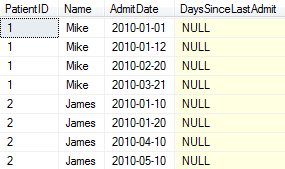
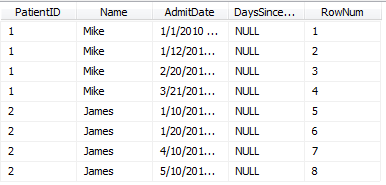
In this example have some data that shows the day a patient was admitted to the hospital and you want to figure how many days it has been since the person was in the hospital last. So you want to calculate the days since the last admit date. Here is the table.
 image
You can see you are going to need the previous row to calculate the number of days since the patient’s last admit date. To accomplish this you are going to use the merge join transform and a little trick with row numbers.
In the data flow you will have two OLEDB sources from the same table. The query in the first source will be.

SELECT        PatientID, Name, AdmitDate, DaysSinceLastAdmit, ROW_NUMBER() Over(Order by PatientID, AdmitDate) as RowNum
FROM            dbo.Patient
Order by  PatientID, AdmitDate

The Right query is :

SELECT        PatientID, Name, AdmitDate, DaysSinceLastAdmit, (ROW_NUMBER() Over(Order by PatientID, AdmitDate)) + 1 as RowNum
FROM            dbo.PreviousRow
Order by PatientID, AdmitDate
 

image

Notice you are ordering by the patientID and then the admit date but the row number will be the top ordered by column. Here is the output of the above query.

image

 
You will need to set up the OLEDB source as sorted in the advanced editor. The trick to this is to set the row number as sort key 1 and the Patient ID as sort key 2. If you need instructions on how to do this, check out my previous blog “Using Merges with Duplicate Rows” on MikeDavisSQL.com. Don’t forget to set IsSorted to true.

The Next transform will be a Merge join. The image below shows how the Merge Join is configured. It is using an Inner Join to eliminate null rows. It is getting the admit date from the right side which would be the previous row to the one on the left.
image 

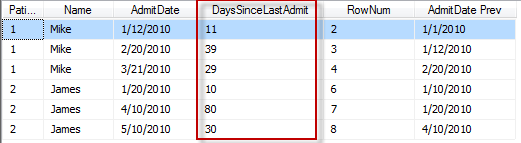
Here is the output from the Merge join.

image

Now you have the admit date and the previous admit date on the same row. It is just a simple derived column using the DateDiff function to get the days since last visit. Here is the code for that.
DATEDIFF(“d”,[AdmitDate Prev],AdmitDate)

The output after the Derived Column will look like the following image. Now you have the days.

image
 
The final Data Flow will look like the following image.
 

image

Now you can write this to a staging table and then update the Patient table using an Execute SQL Task.

Posted in SSIS, Syndication | 1 Comment

SSIS Merge with Duplicate Rows

The Merge component in SSIS will take two sorted sources and union them while maintaining the original sort order. The question arises, what about duplicate records. These duplicates do not get eliminated.

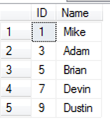
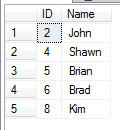
Here are two tables with the ID 5 and the name Brian repeated on each.

imageimage
 
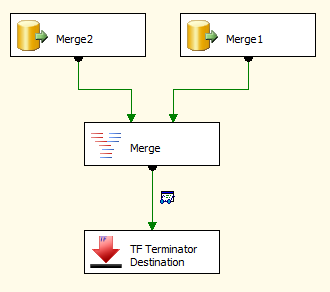
Here is the layout of the data flow. Both sources are using the same query with the different table names.

Select ID,Name
From Merge1
Order by ID

Select ID,Name
From Merge2
Order by ID

image
 
 
Just having the sources sorted does not tell the Merge they are sorted. You have to adjust the Sort property of the sources.

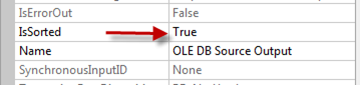
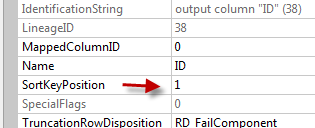
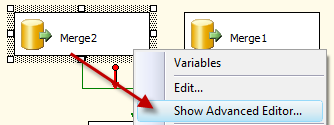
To do this right click on the sources and open the advanced editor. Click on the  Input/Output Properties tab and click on the OLEDB Source output. Then change the IsSorted property to True on the output. Click the plus next to the OLEDB Source output and select the ID column and change the SortKeyPosition to 1.
 
 image

image
 
 image

Then connect them both to the Merge.

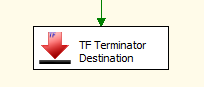
I used a terminator destination from Task Factory, this is an add on from Pragmaticworks.com.
 
 image
 
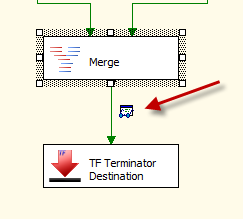
I added a data viewer between the merge and the terminator destination by righting clicking on the green data flow line and selecting data viewer.
 

image
 
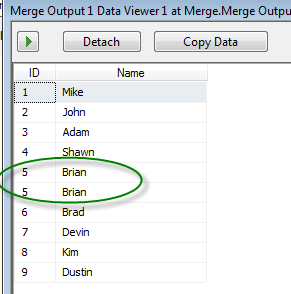
Execute the package and look at the data viewer. Notice the column with the ID of 5 is repeated. The Merge does not remove rows.

image

Posted in SSIS, Syndication | Tagged , | Leave a comment

SSIS Child Errors in Parent Package

If you have a parent package that is looping through a set of files and calling child packages and want the parent package to continue even if the child package fails, there is a little work involved in making this happen.
In this example I have a parent package that loops through a collection of files & calls the appropriate child package (out of 2 child packages). I want to abort/exit the child package without aborting the parent package also. As soon as 1 error is found, I need to exit the child package and move the file to an error directory so the parent loop won’t be interrupted.

I created a master package and two child packages to demonstrate how I would do this. I will walk through the master set up and one of the child packages. Each child package is identical. I am going to explain how I would call each child package also. I will also cover the error issue.

image

      Above is the Master or Parent package. I have a For Each Loop loping through a set of files. The first item in the For Each Loop is a Sequence Container. This is used as an expression anchor. This allows you to decide which child package to run based on the value of the expressions. The expressions just check the file name. Based on the file name it will run the appropriate child package. After the child packages there is a script task that checks for the error file that may have been create by the child packages. It also deletes the error file and moves the data file that had the error to a backup folder.
image
      Above are the variables in the master package. Notice we are trying to make the package as dynamic as possible. Nothing is hard coded. If any of these items change it is a simple change to a variable to update the package. This can be done from configuration files also. The variable strFileName is going to be filled with the For Each Loop. Everything else is as shown.

image

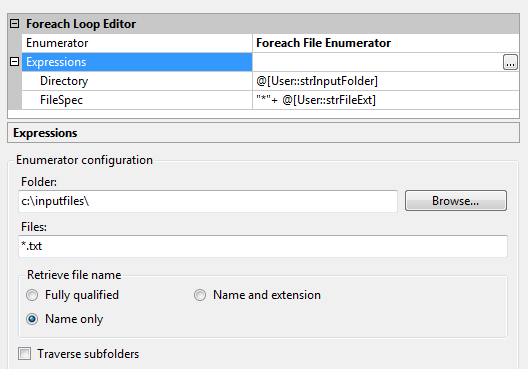
      The For Each Loop in the master package is set up to use the variables in the expressions of the collection. Notice it is only getting the name of the file. The folder and extension are in the variables. The file name is mapped to the variable strFileName
image
      Above is the child package configuration. I have placed all the same variables in the child package and used parent configurations to pass all of the values to the child package.

image
      The child package consists of only one data flow. The input file name is set dynamically with an expression on the connection string mapped to the variables. The expression is:
@[User::strInputFolder] +  @[User::strFileName] +  @[User::strFileExt]

This combines all of the proper variables to give the package the location of the current file found by the for each loop in the master package.
 
    Public Overrides Sub Input0_ProcessInputRow(ByVal Row As Input0Buffer)
        ‘
        ‘Create script variables to hold package variable values
        Dim strFileExt As String = Me.Variables.strFileExt
        Dim strChildErrorFile As String = Me.Variables.strChildErrorFile
        Dim strInputFolder As String = Me.Variables.strInputFolder
        Dim badfile As String = strInputFolder + strChildErrorFile + strFileExt

        ‘create file to indicate an error I
        Dim fs As FileStream = File.Create(badfile)
        fs.Close()

        ‘
    End Sub

    On the source in the data flow I have set all of the errors and truncation to redirect to the error output. This will cause the script tasks to run. The code in the script task is above. I also set the read only variables to strChildErrorFile, strFileExt, and strInputFolder.

This code will create a file that the master package will be able to see to tell there was an error. Notice I am using a file stream to create the file and I close the FileStream. If you do not do this you will get an error in the master package saying the file is in use in another process.

If you want the file to be an all or none load, set up a transaction on the Child package.
 
    Public Sub Main()

        ‘create script variable to hold package variable values
        Dim strBackupFolder As String = Dts.Variables(“strBackupFolder”).Value
        Dim strChildErrorFile As String = Dts.Variables(“strChildErrorFile”).Value
        Dim strFileExt As String = Dts.Variables(“strFileExt”).Value
        Dim strFileName As String = Dts.Variables(“strFileName”).Value
        Dim strInputFolder As String = Dts.Variables(“strInputFolder”).Value

        ‘create error file and backup file full file names
        Dim strErrorFile As String = strInputFolder + strChildErrorFile + strFileExt
        Dim strInputFile As String = strInputFolder + strFileName + strFileExt
        Dim strBackupFile As String = strBackupFolder + strFileName + strFileExt

        ‘check for the child error file, move bad file if it exist
        If File.Exists(strErrorFile) Then
            File.Move(strInputFile, strBackupFile)
            File.Delete(strErrorFile)
        End If

        Dts.TaskResult = ScriptResults.Success
    End Sub

    Back in the master package there is a script task after the child package that will check for the existence of the bad file. This code is in the left pane.
The top section is just saving all of the package variables in to VB script varables.

The second section is combining some of these variables to get the file names.
The If Then section is checking for the existence of the error file that might have been created by the child package. If the error file does exist it moves the input file to the bad files folder and deletes the error file.
This allows the master package to go to the next file in the loop and allows the next child package to create a new error file if needed.

Posted in SSIS, Syndication | Tagged , , | Leave a comment

SQL Saturday 85 Orlando 2011 Aftermath

SQL Saturday 85 in Orlando , FL on September 24, 2011 was a great event. The people putting it together did a great job of putting on the event. The logistics on these events  must be a daunting tasks and they handled it perfectly.

I would like to personally thank Bradley Ball (Blog|Twitter), Karla Landrum(Blog|Twitter), and Shawn McGehee(Blog|Twitter) for the work they did to put this SQL Saturday. I apologize to anyone I left out.

In my first session I covered SSIS Script tasks. You can download the slides and the code here.

In the last session of the day I put on the SQLSmackdown with Adam Jorgensen(blog|Twitter). You can download the slides and code here. This session was packed out and was a lot of fun and educational. Adam was judged the winner. I know the referee Bradley Ball had to be paid off so I gave him a SQLSmackDown. After slamming the ref against the wall I stormed off.

Then I realized I had left my laptop. and had to go back in the room, awkward!

Posted in SQL Saturday | Tagged | 1 Comment

SSIS Lookup Cache Connection Manager with Excel

The lookup transform in SSIS 2008 gives you the ability to join data and eliminate non matching rows. One of the limitations of the lookup is the fact it requires an OLEDB connection. However, with the cache connection manager you can use just about any other data source as your lookup table. If you have an excel file that contains your lookup information, it would be nice to be able to lookup the information in the excel file without having to load the excel file into a table.
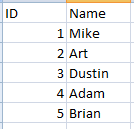
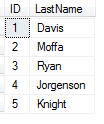
To accomplish this we will load the excel file into a cache connection manager and use this in the data flow. Below is my SQL Table with first names and my excel file with last names. They both have matching ID columns. I will match up the id in the lookup transform to combine the names.
Excel File with First Names
 
image

SQL Table with last names
 
image

The SSIS package will require two data flows. The first will load the excel file into cache. The second will have the table source and the lookup transform. Here is the Control Flow of the package.
 
image

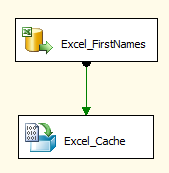
In the first data flow we will have the excel source and a cache transform.
 
image

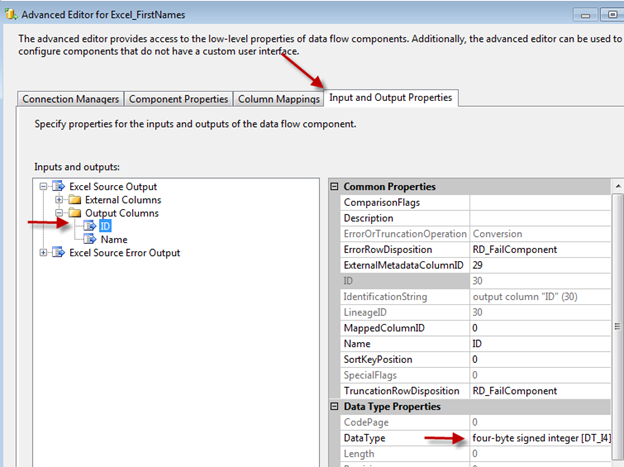
The Excel source is just a simple source with the ID column and the First Name Column. The only change you may have to make is to the data types in the excel source. I had to change the data type of the ID field to integer. That is because my table has an ID column with a data type of integer. To change the data type, right click on the excel source and select Advanced Editor. Click on the Input and Output Properties Tab, expand the output columns folder, select the ID column, and change the data type property as needed.
 
image

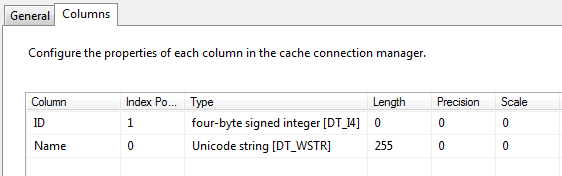
After you have the source ready, drag the green data flow line to the cache transform. Click the New button and give the cache connection manager a name. Then click on the columns tab and set the ID column’s index property to 1. You must have at least columns with an index property value greater than zero.
 
image

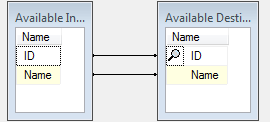
Click on the mappings node in the cache transform and map the columns from excel to the cache connection. Notice the magnifying glass next to the ID, this indicates the index column.
 
image

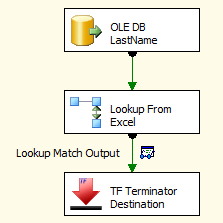
In the next data flow we will have and OLEDB source from the SQL table and a lookup transform using the cache connection. I also have a terminator destination from task factory, just so we have a place to put a data viewer to see if the first and last names are joined.

 
image

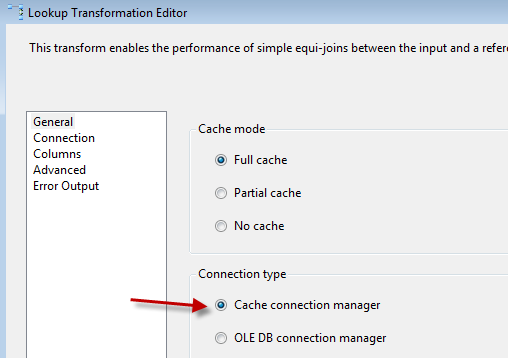
The OLEDB Source is just a select from a table pulling the ID and the Last Names. In the lookup transform, set the connection type to the cache connection manager.
 
image

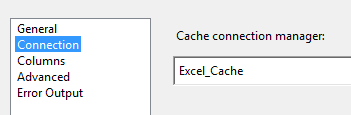
Click on the connection node and set the connection to the cache connection manager.
 
image

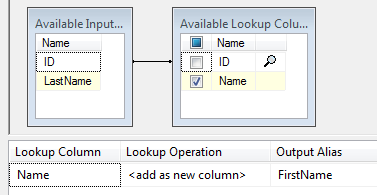
Click on the columns node and map the ID column to the ID column in the cache. Place a check next to the first name field.
 
image

Here are the results from the data viewer after the lookup.
 
image

You can use this same method to load just about anything into cache and use it in the lookup transform.

Posted in SSIS, Syndication | Tagged , , | 1 Comment